
AltTide: AI Alt Text & Image SEO
AltTide writes accurate, descriptive alt text for your whole media library using your own AI provider key. It helps two things at once: accessibility (so screen readers can describe your images) and image SEO (so search engines understand them).
This guide follows the plugin’s own screen. Each section heading below is one tab or area of AltTide, and every option in it has its own heading with the exact name shown in the plugin. Where a feature needs AltTide Pro, it is marked.
Overview
Every image on your site should have alt text, a short written description of what the image shows. Screen readers read it aloud for people who cannot see the image, accessibility rules such as WCAG expect it, and search engines use it to understand and rank your images.
AltTide writes that alt text for you. You connect an AI provider you trust (OpenAI, Anthropic Claude, or Google Gemini), and AltTide generates alt text for every image that is missing it, one image at a time.
AltTide is a bring-your-own-key plugin. You use your own provider API key, so there are no per-image fees from us. You pay only your provider’s usage, often a fraction of a cent per image.
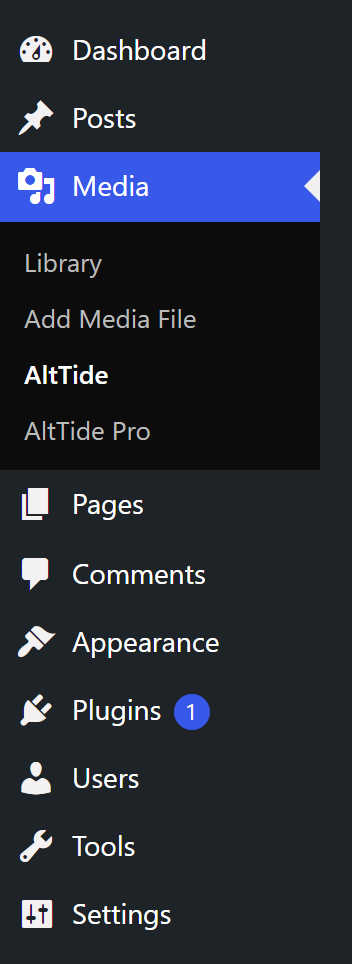
The free plugin has six tabs: Dashboard, Providers, Settings, Activity, Tools, and Our plugins. AltTide Pro adds more, covered in the Pro sections near the end.
Requirements
- WordPress 5.6 or higher
- PHP 7.4 or higher
- An API key from one provider: OpenAI, Anthropic Claude, or Google Gemini
- Supported image types: JPG, PNG, WebP, and GIF
Pro AltTide Pro is a separate add-on. The free AltTide core must be installed and active first, and Pro is installed from the ShoreZella store, not from the WordPress.org directory.
Installation and setup
You can be generating alt text in about three minutes.
- Install the plugin. Either upload it in Plugins > Add New > Upload Plugin, or search for “AltTide” in Plugins > Add New, then click Activate.
- Go to AltTide > Providers, paste an API key for OpenAI, Claude, or Gemini, and click Test.
- Go to AltTide > Dashboard and click Generate all missing, or generate image by image.
That is the whole free setup. Everything else is optional tuning.

Dashboard
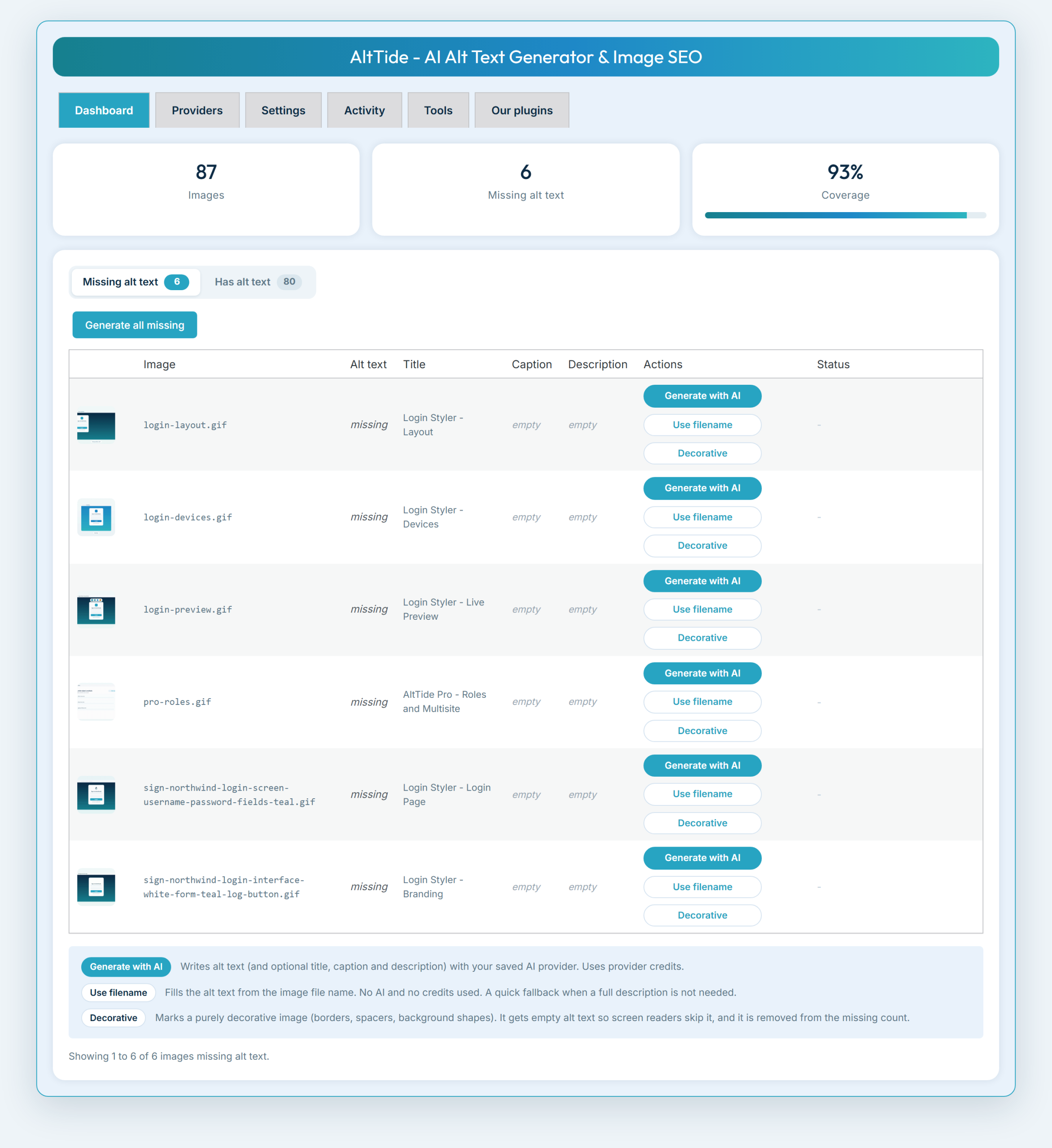
AltTide > Dashboard is where you see coverage and generate alt text. By default AltTide only fills images that are missing alt text and never overwrites text you wrote yourself, unless you turn on overwrite in Settings.
Coverage
The share of your images that already have alt text, so you can watch it climb toward 100 percent.
Missing alt text
A list of every image that still needs alt text. Each row has a Generate button and a Decorative action.
Has alt text
A list of images that already have alt text, so you can hand-pick ones to redo, for example after changing your model.
Generate all missing
Starts a bulk run over every image without alt text, processed one at a time so your provider account is never flooded.
Regenerate selected
In the Has alt text view, tick images and click this to redo them with your current provider and model.
Decorative
Marks an image as decorative (a divider, spacer, or flourish that a screen reader should skip). It gets an empty alt, drops out of the missing count, and is skipped during generation.
Providers
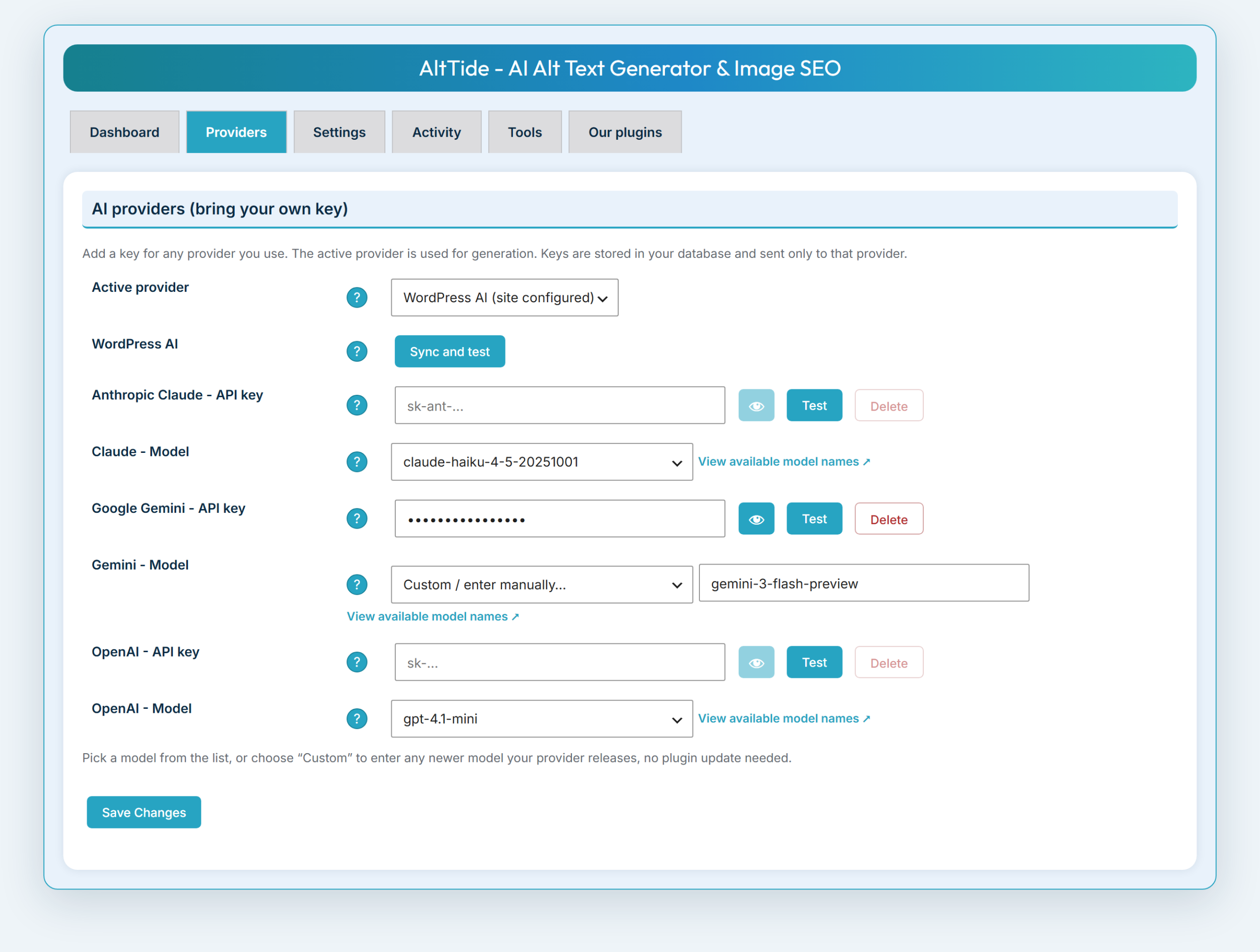
AltTide > Providers is where you connect an AI service. AltTide never contacts an AI provider until you add a key, and it only ever contacts the one you choose. Keys are stored in your own WordPress database and sent only to the provider you select. Click Save Changes when done.
Pro this tab also gains OpenRouter and a Custom endpoint. See More AI models (Pro).
Active provider
Pick OpenAI (GPT), Anthropic Claude, or Google Gemini.
API key
Paste your key for the selected provider. Each key is masked after saving; use the eye button to reveal it or the delete button to remove it.
Model
Choose from the current models listed, or type any newer model name the provider releases. A link opens each provider’s model page. Defaults are gpt-4.1-mini (OpenAI), claude-haiku-4-5 (Claude), and gemini-2.5-flash (Gemini).
Test
Confirms the key and model respond before you rely on them.
Settings
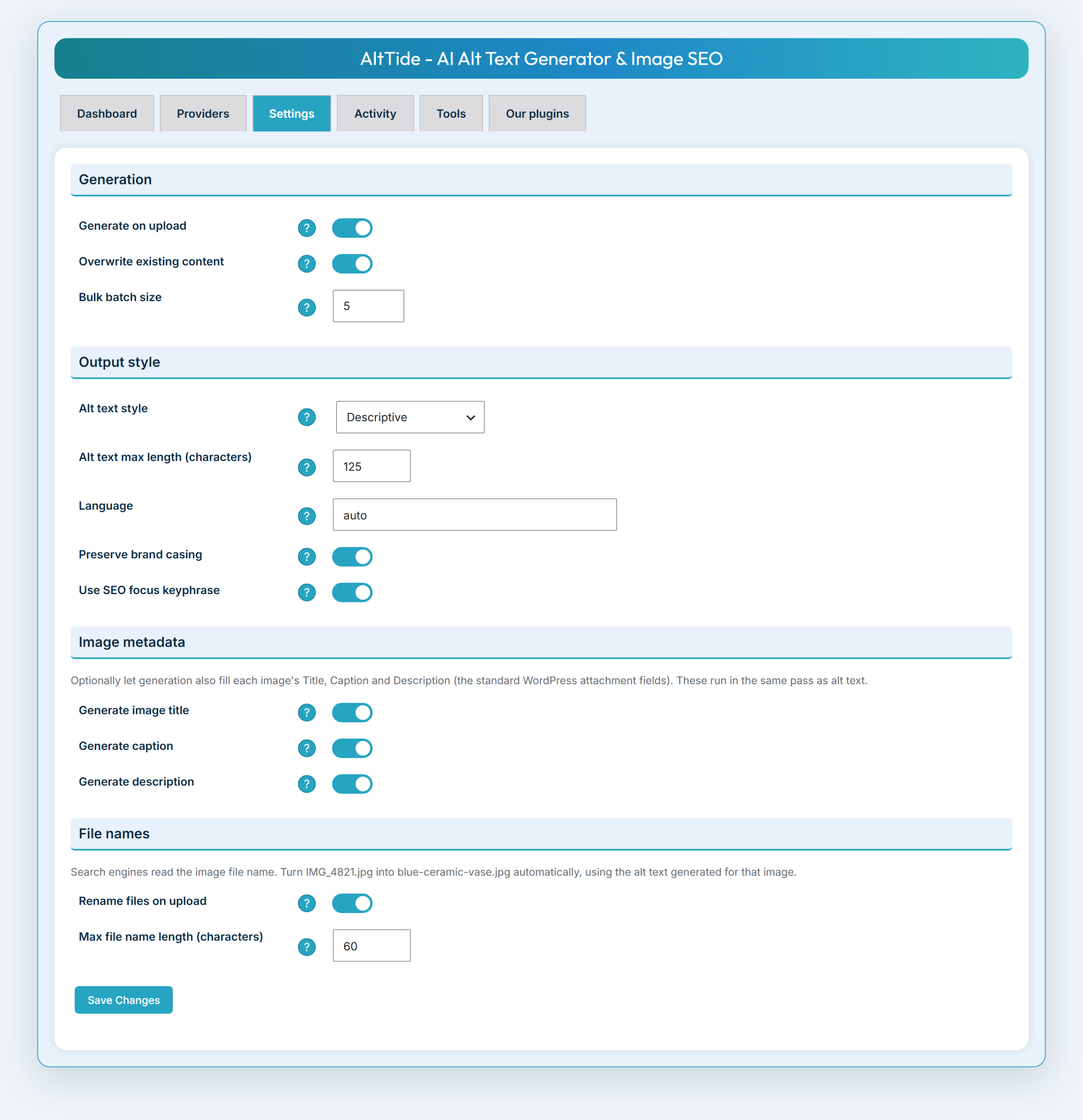
AltTide > Settings controls how alt text is written and what else is filled in. Click Save Changes when done.
Generate on upload
Automatically write alt text for each new image as it is uploaded. Off by default.
Overwrite existing
Allow generation to replace alt text that is already there. Off by default, so your own writing is safe.
Language
auto follows the page or site language, or choose a specific language to always write in.
Alt text style
descriptive (a natural sentence), concise (shorter), or keyword (leans on the focus keyphrase).
Preserve brand casing
Keeps names like iPhone and WordPress correctly cased instead of forcing sentence case. On by default.
Use SEO focus keyphrase
Read the focus keyphrase from your SEO plugin and use it to steer wording. Works with Yoast SEO, Rank Math, All in One SEO, and SEOPress. On by default.
Maximum length
The character limit for generated alt text. Default 125, the accessibility best-practice length.
Generate title, caption, and description
Also fill each image’s title, caption, and description (the standard WordPress attachment fields) in the same pass. Each has its own toggle, all on by default.
Rename files on upload
Rename new uploads from their generated alt text, so IMG_4821.jpg becomes blue-ceramic-vase.jpg. Off by default. This only ever touches brand-new uploads, never images already in your library, so no published URL can break.
File name maximum length
The longest a generated file name may be, in characters.
Bulk batch size
How many images each bulk batch processes before the next, which paces your provider account.
Activity
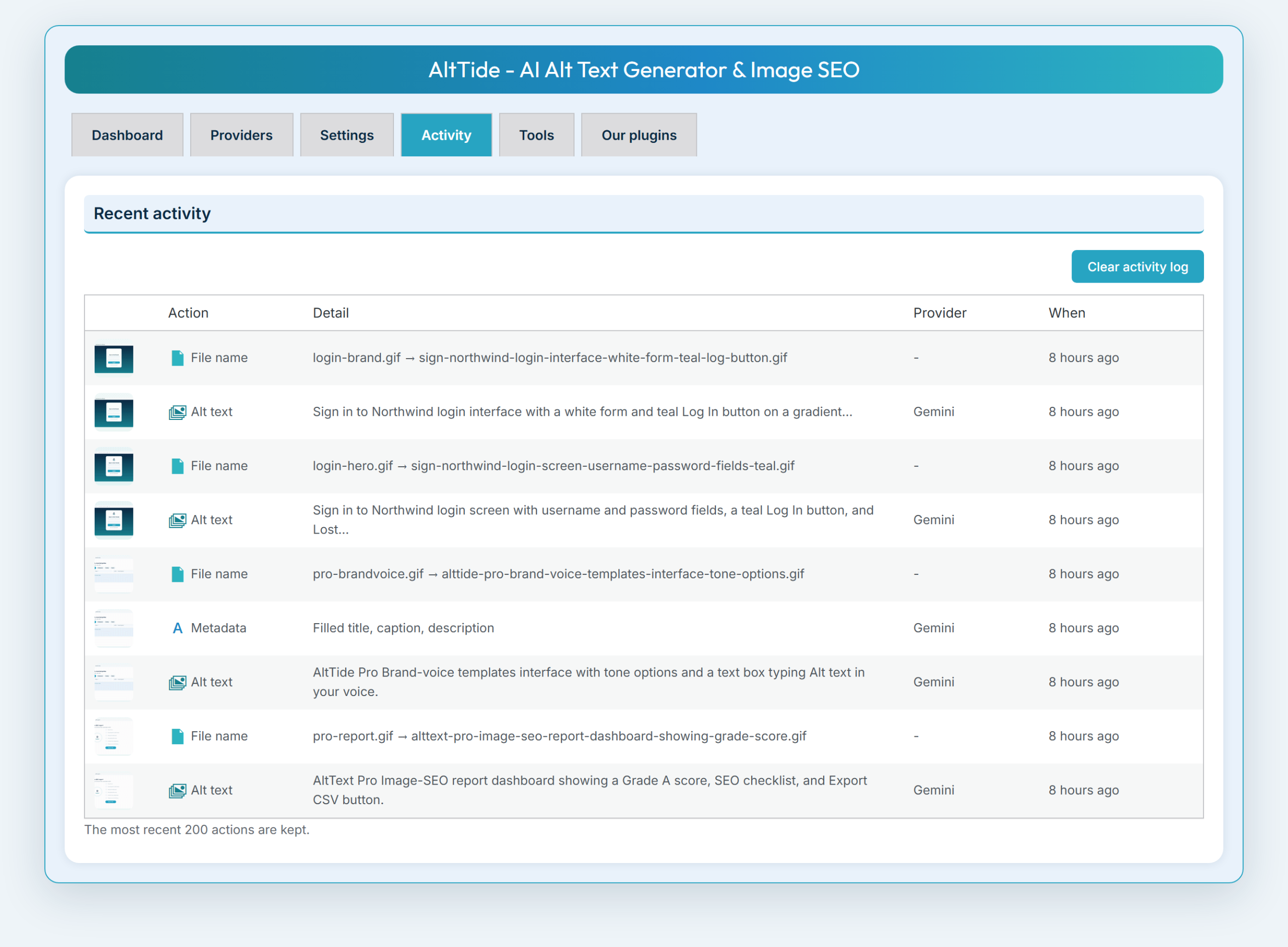
AltTide > Activity is an in-dashboard feed of what AltTide has done: alt text written, metadata filled, files renamed, and images marked decorative. It is a quick way to confirm a bulk run did what you expected. Use the clear button to empty the log.
Tools
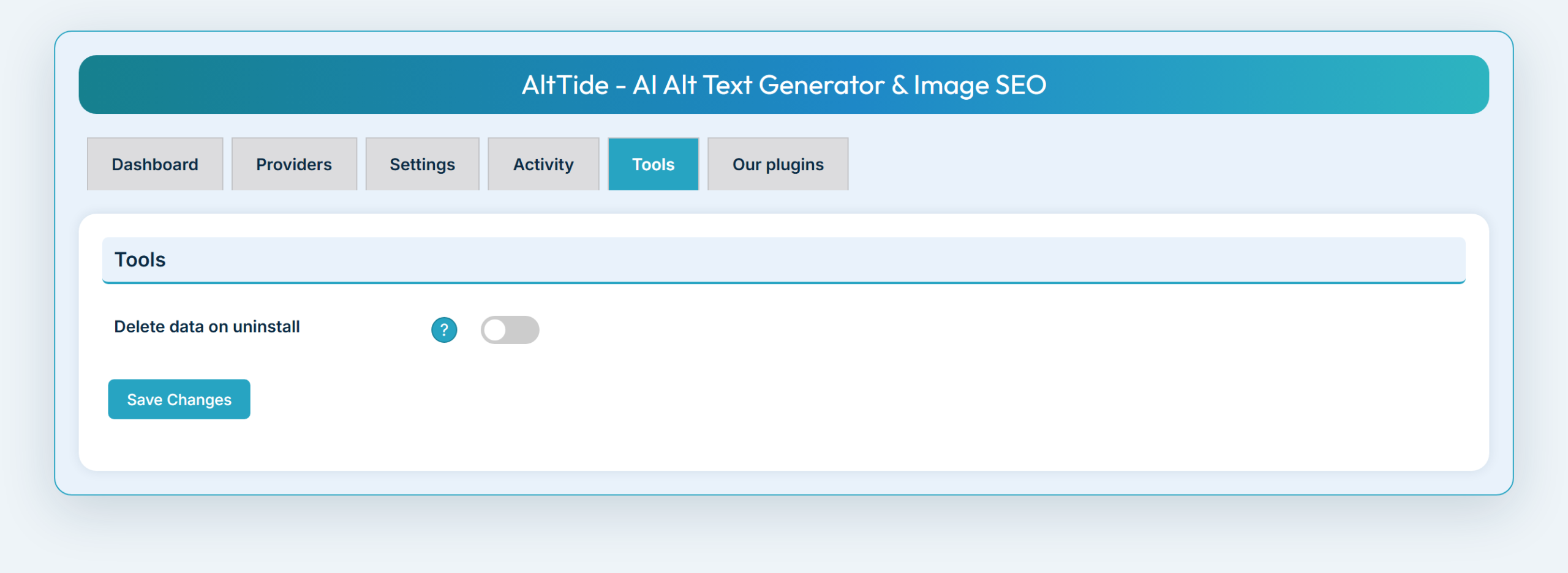
AltTide > Tools holds housekeeping options. Deactivating the plugin never deletes anything, and AltTide never edits the content of your images.
Delete data on uninstall
Off by default. When off, deleting the plugin leaves your settings in place. Turn it on if you want AltTide to remove all of its options when you delete the plugin.
Our plugins
AltTide > Our plugins shows the other plugins ShoreZella makes, so you can find companion tools. It loads a public product list only when you open the screen, and it sends no information about your site.
In the media library
You do not have to open the dashboard to generate alt text. AltTide adds controls right where you work with images.
Generate with AI
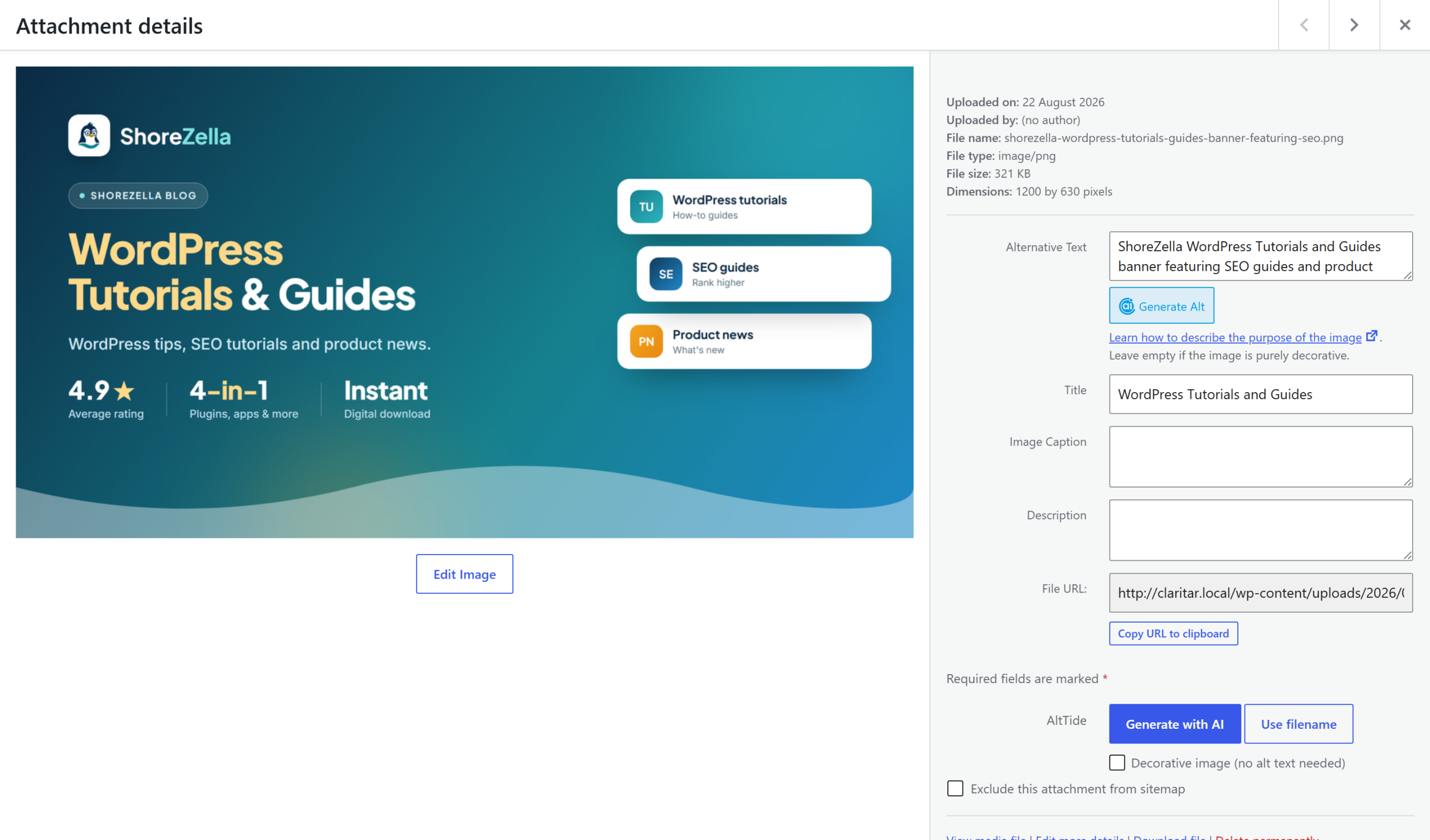
A button next to the alt text field in the media modal (the popup for inserting an image) and in the attachment editor. It writes alt text for that one image on the spot.
Use filename
A quick, non-AI button that fills the alt text from the image’s file name.
Decorative image
A checkbox in the attachment editor that marks the image as decorative, giving it an empty alt so screen readers skip it.
WP-CLI
If you manage your site from the command line, AltTide adds a command for bulk work on large libraries or scheduled server tasks:
wp aialtte generate            # fill images that are missing alt text
wp aialtte generate --all      # regenerate for every image
wp aialtte generate --limit=50 # process at most 50 images
A terminal running wp aialtte generate.
Setup Wizard and license Pro
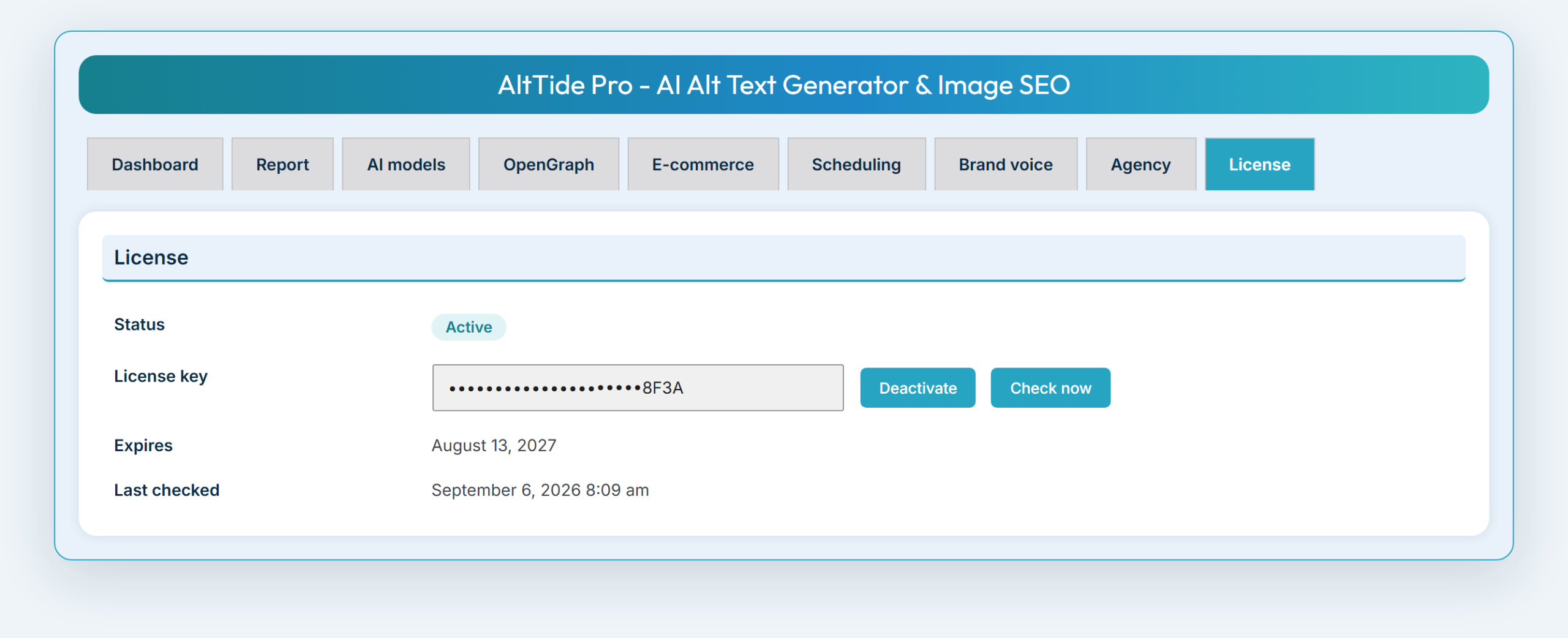
After you activate AltTide Pro, a short Setup Wizard walks you through setup. Manage the license any time on the License tab. If a license is expired or inactive, Pro features switch off but the free plugin keeps working normally.
License key
Enter the key from your ShoreZella purchase to unlock Pro features and updates.
AI key
Confirm your provider key (the same bring-your-own-key setup as the free plugin).
License tab actions
Activate, deactivate, and re-check the key from the License tab.
Testing on a staging site
You can safely install and test AltTide Pro on a staging or development copy of your site without using up one of your license activations. Whether this happens automatically depends on your staging site’s web address.
A staging site still needs an active license to unlock Pro features and receive updates. The only difference is that it does not use up one of your activations.
Your staging site is recognized automatically, with nothing to set up, when its address looks like a test site. If it looks like an ordinary live address, you add one short line to tell WordPress it is a staging site. This table shows both cases with examples:
| Example of your staging site’s address | Do you need to add anything? |
|---|---|
localhost or 127.0.0.1 (a copy running on your own computer) | No, detected automatically |
An address ending in .local, .test, or .dev (for example mysite.local) | No, detected automatically |
A staging or dev subdomain (for example staging.mysite.com or dev.mysite.com) | No, detected automatically |
| A staging address from a managed host (WP Engine, Kinsta, Cloudways, Flywheel, GoDaddy, Bluehost) | No, detected automatically |
A private network address (for example 192.168.1.10) | No, detected automatically |
A normal-looking address (for example mysite-staging.com, staging-mysite.com, or mysite.com/staging/) | Yes, add one line (see below) |
A separate domain you use only for testing (for example testmysite.com) | Yes, add one line (see below) |
If your staging site is in the Yes, add one line group above, open that site’s wp-config.php file and add this line near the top, above the line that reads That's all, stop editing:
define( 'WP_ENVIRONMENT_TYPE', 'staging' );That one line tells WordPress the site is a staging site, and AltTide Pro then treats it as one, so it does not use a license activation. Adding it is safe and never hurts: if your site was already detected automatically, this line simply confirms it. If you are not sure which group your site is in, adding the line is the reliable choice that works in every case.
Important: only add this line on a real staging or test site, never on your live site. A live site marked as staging behaves differently in WordPress and in some plugins, and your live site should always count as a normal activation.
More AI models Pro
Pro adds two more choices on the Providers tab.
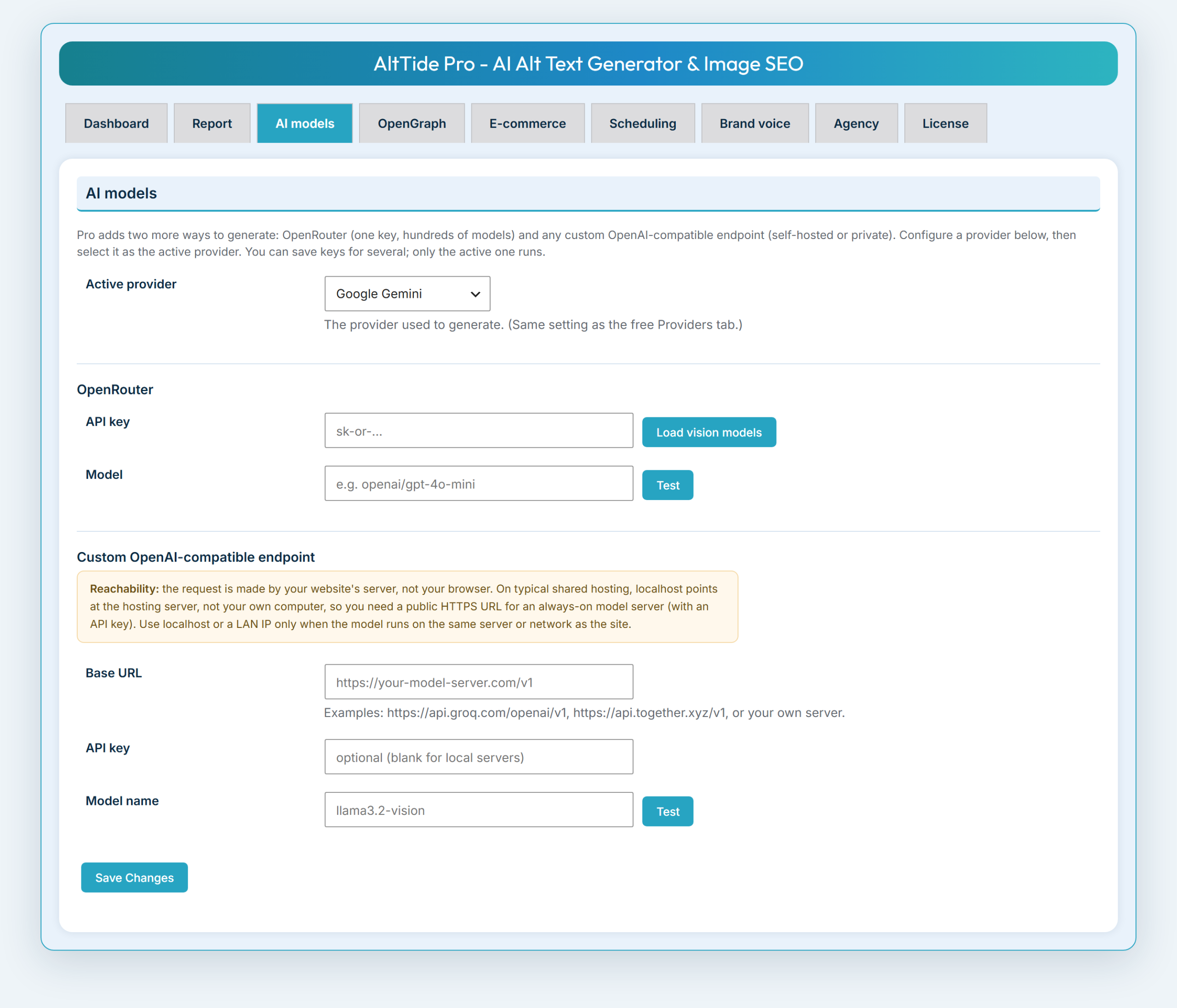
OpenRouter
One key reaches hundreds of models, shown through a vision-only picker so you only see models that can read images.
Custom endpoint
Point AltTide at any OpenAI-compatible service by entering a base URL, key, and model name. This works with self-hosted servers (Ollama, vLLM), gateways such as Groq or Together, or a private company endpoint.
Image-SEO report Pro
The Report tab scores your image SEO, not just whether alt text exists.
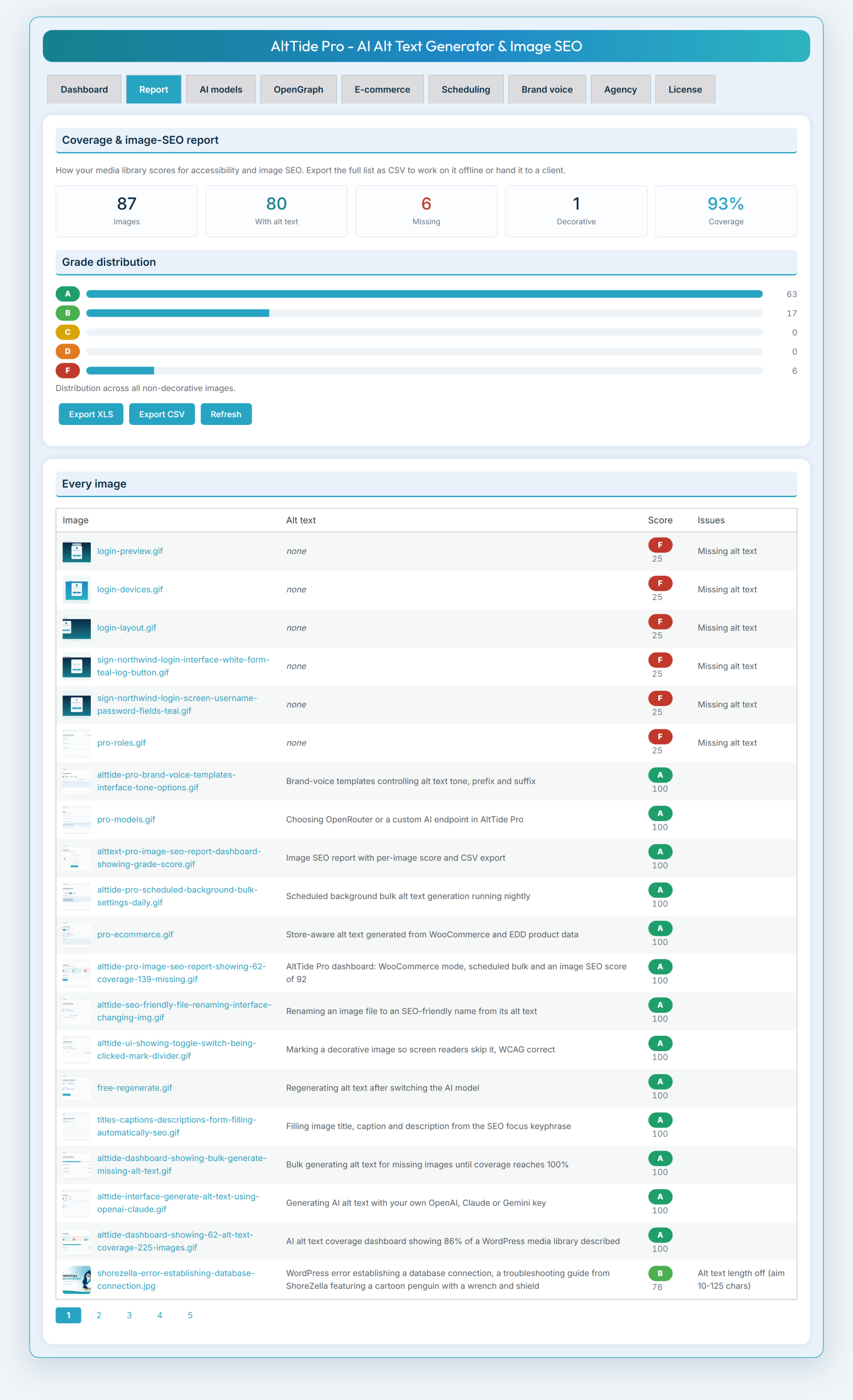
Score checks
Each image gets a score out of 100 from six checks:
| Check | Weight | What it looks for |
|---|---|---|
| Has alt text | 30 | The image has alt text at all |
| Good length (10 to 125 chars) | 20 | Alt text is a concise sentence, not too short or long |
| Not just the filename | 15 | Alt text describes the image, not a raw file name |
| Descriptive file name | 10 | The file is named with real words, not IMG_1234.jpg |
| Includes focus keyphrase | 15 | Alt text contains the post’s focus keyphrase |
| Unique | 10 | The alt text is not a duplicate of another image |
A check that does not apply (for example, no focus keyphrase on the page) is left out of the math, so scores stay fair.
CSV export
Export the whole report to CSV to work on offline or hand to a client. The report also shows overall coverage, a grade distribution, and a per-image table.
E-commerce context Pro
For store images, Pro can feed real product data into generation so alt text names the actual product. Set this up in the E-commerce settings.
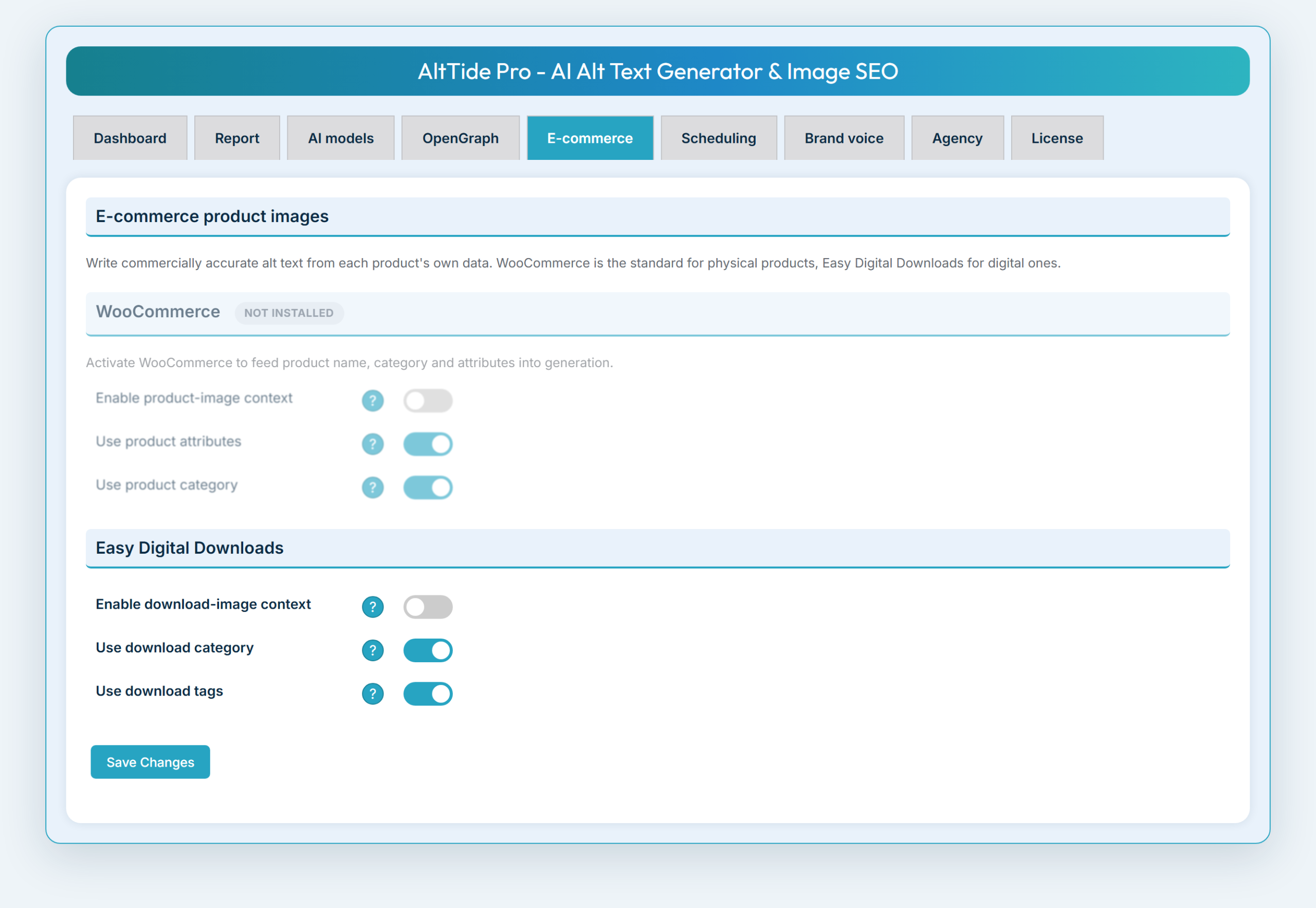
WooCommerce
Turn it on to describe product images using the product name, category, and attributes.
Easy Digital Downloads
Turn it on to describe product images using the product name, category, and tags.
OpenGraph image meta Pro
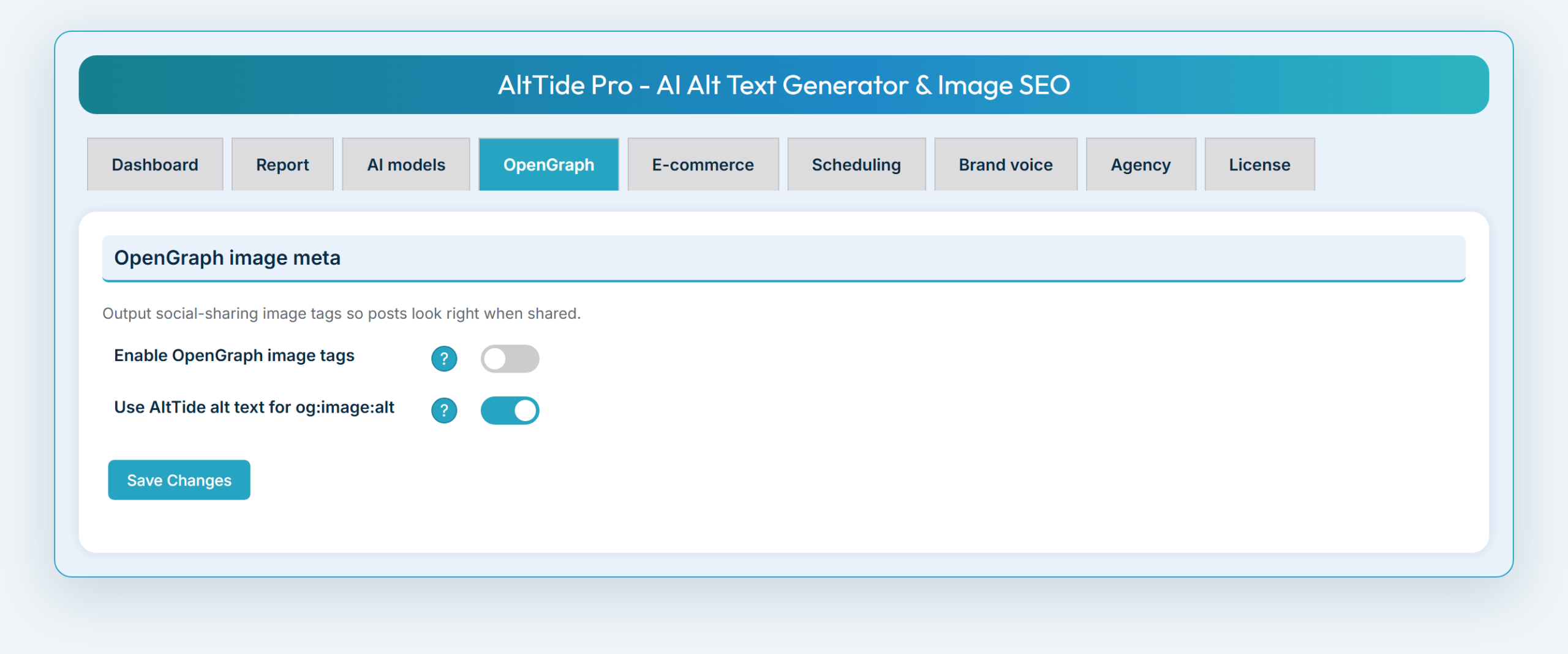
When a page is shared on social media, the preview image can carry its own meta. Pro adds OpenGraph image meta (og:image and og:image:alt), and it can reuse the alt text AltTide already generated for the og:image:alt value, so shared links describe their image correctly.
Scheduled bulk Pro
Instead of running bulk generation by hand, Pro can process your library in the background on a schedule.
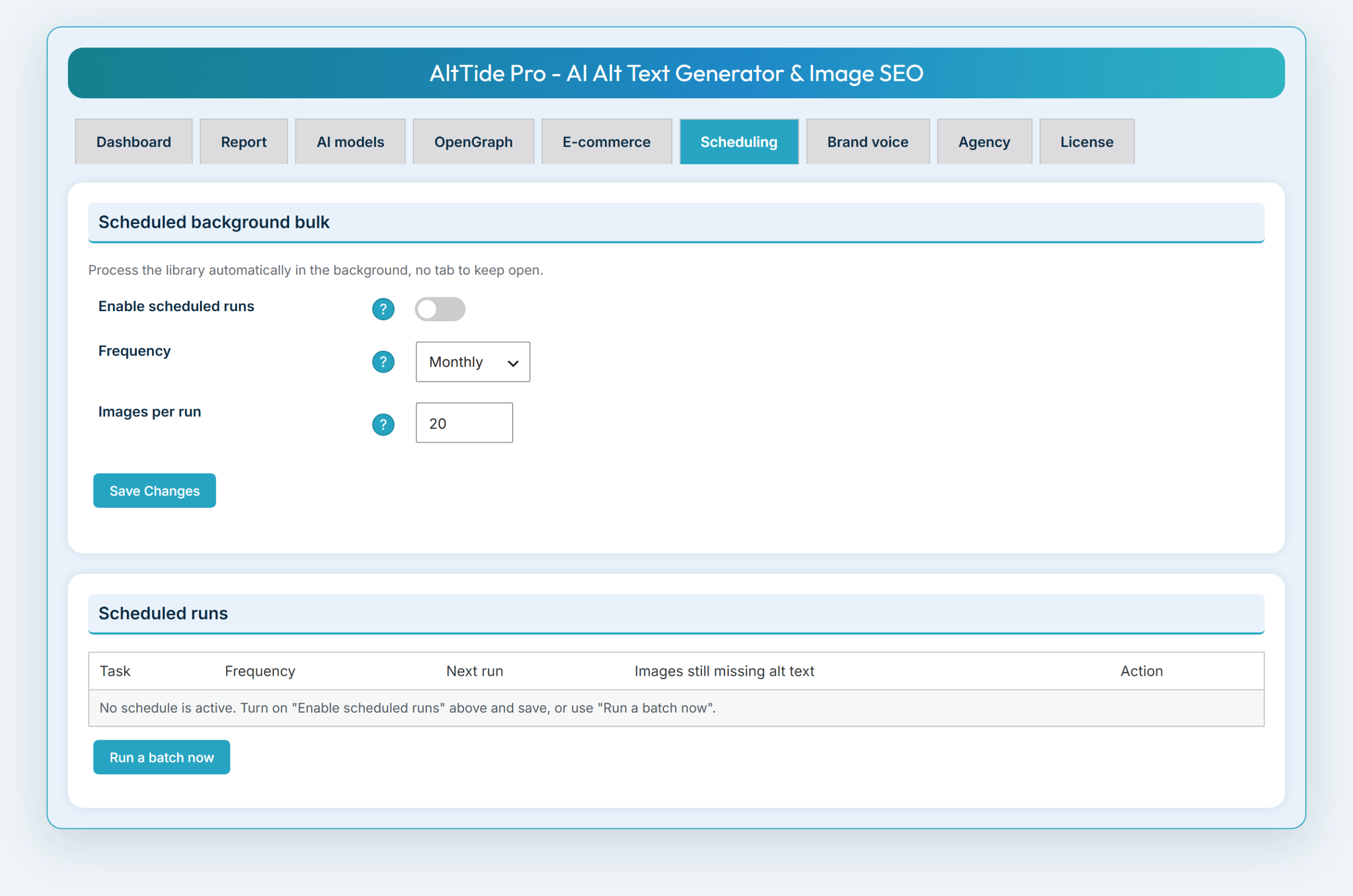
Frequency
How often the scheduled run happens: hourly, twice daily, daily, weekly, monthly, or yearly.
Batch size
How many images each scheduled run processes.
Status and Run a batch now
The Scheduling area shows the next run, any queued one-off run, and how many images are still missing alt text, with a button to run a batch immediately.
Brand-voice templates Pro
Pro shapes the tone and framing of generated text so it sounds like your brand.
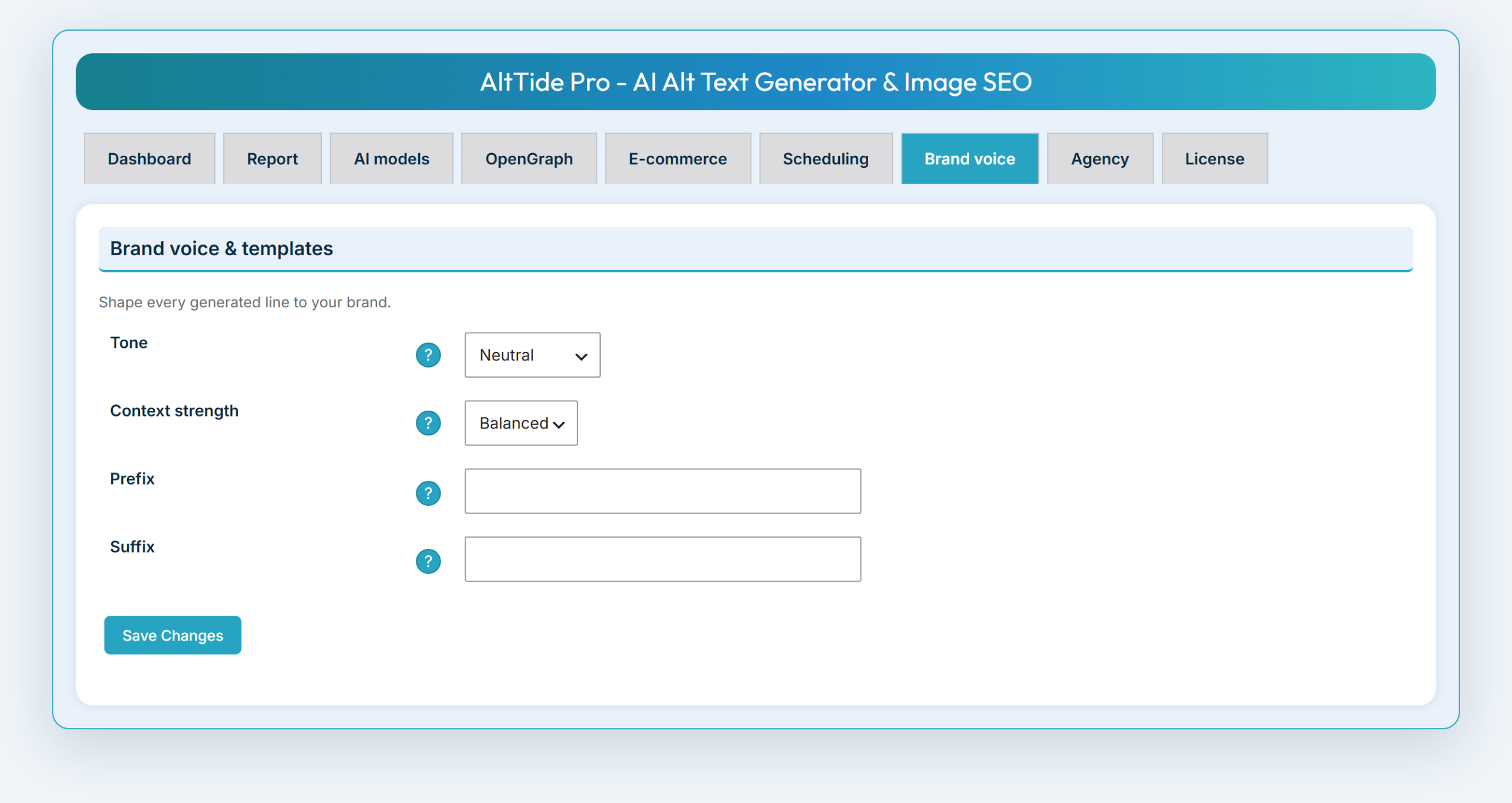
Tone
neutral, professional, friendly, or playful.
Context strength
literal, balanced, or rich, which controls how much the AI infers beyond what is literally in the image.
Prefix and suffix
Optional text added to the start or end of every generated description.
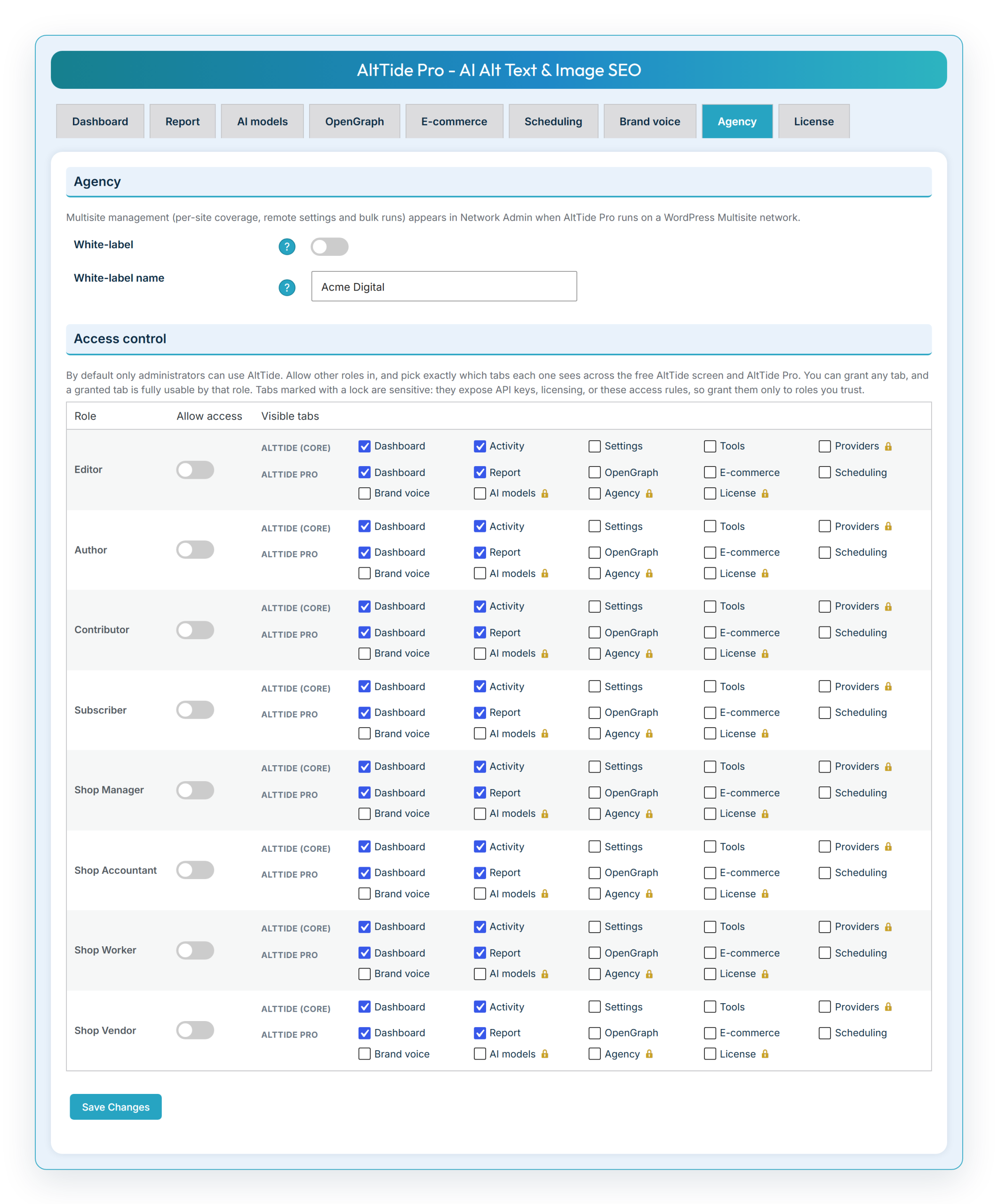
Role access Pro
By default only administrators can use AltTide. Pro lets you grant access to chosen non-admin roles and pick exactly which tabs each role sees, across both the free and Pro screens, from the Agency area’s access table. Sensitive controls (API keys, licensing, and saving settings) can be kept admin-only, so you can, for example, let an editor run generation without exposing your provider keys.
Agency and multisite Pro
For agencies and networks, Pro adds white-label and network tools.

White-label
Rename and rebrand the AltTide admin for client work.
Multisite management
On a WordPress network, a Network screen shows each site’s coverage, lets you change each site’s settings remotely, and can run a background bulk generation per site, all from one place.
Frequently asked questions
Do I need an API key?
Yes. AltTide is a bring-your-own-key plugin, so you add your own OpenAI, Claude, or Gemini key. There are no per-image fees from us; you pay only your provider’s usage.
Which image types are supported?
JPG, PNG, WebP, and GIF.
Will it overwrite alt text I already wrote?
No. By default it only fills images that are missing alt text. To redo images that already have alt text, open the dashboard’s u003cstrongu003eHas alt textu003c/strongu003e view, select the images, and click u003cstrongu003eRegenerate selectedu003c/strongu003e, or turn on u003cstrongu003eOverwrite existingu003c/strongu003e in Settings.
I changed my AI model. Can I redo images I already generated?
Yes. On the dashboard, switch to the u003cstrongu003eHas alt textu003c/strongu003e view, tick the images you want, and click u003cstrongu003eRegenerate selectedu003c/strongu003e. They are re-run one at a time with your current provider and model.
Does it work with WooCommerce?
Basic product images work in the free version. Product-image context (name, category, attributes) is a Pro feature. See E-commerce context (Pro).
What is a decorative image?
A purely decorative image (a divider, a spacer, a flourish, sometimes a logo) adds nothing for a screen-reader user, so accessibility guidelines say it should have an empty alt attribute rather than a description. Use the u003cstrongu003eDecorativeu003c/strongu003e action on the dashboard, or the checkbox in the attachment editor, to mark such images.
Does it change my images?
It never edits image content, and by default it does not touch your files at all; it only writes the standard WordPress alt text, title, caption, and description fields. The one exception is opt-in: if you turn on u003cstrongu003eRename files on uploadu003c/strongu003e, newly uploaded files are renamed for SEO. That setting is off by default.
Is renaming files safe?
Yes. It only ever applies to a brand-new upload, before it can be placed in any post. Images already in your library are never renamed, so no published URL, feed, sitemap, or cache entry can break. WordPress metadata and every generated thumbnail size are updated together with the main file.
Where are my API keys stored, and what gets sent?
Your keys are stored in your own WordPress database. When you generate, AltTide sends the image (or its URL) and a short text prompt to the one provider you chose, along with your key for that provider. Nothing about your site is sent to ShoreZella.
Can I use my license on a staging or development site?
Yes. You can test AltTide Pro on a staging or development site without using a license activation. If your staging address looks like a test site (for example localhost, mysite.local, or staging.mysite.com), this is automatic. If it is an ordinary-looking address (for example mysite-staging.com or mysite.com/staging/), add the line define( 'WP_ENVIRONMENT_TYPE', 'staging' ); to that site’s wp-config.php. See Setup Wizard and license (Pro) for the full list of examples.
Do I need the free plugin to use Pro?
Yes. AltTide Pro is an add-on. Install and activate the free AltTide core first, then activate Pro and run the Setup Wizard.
Changelog
1.0.0
- Initial release.