Learning how to use WordPress feels harder than it is. The software runs a huge share of the web, so almost every guide assumes you already know what a “permalink” is or where the block editor hides its settings. This guide does not. It walks you through the actual screens, in the order you will meet them, from your first login to the moment your site goes live, with a screenshot of every screen so you always know you are in the right place.
By the end you will have published a post, built a page, set up a menu, installed a plugin, and fixed the five settings that matter on day one.
What you need: a WordPress site that is already installed, about an hour, and nothing else. No code.
What WordPress is, and what you can build with it
WordPress is free software that manages the content of a website for you. Instead of editing files, you log in to an admin area, type into a form, and click a button. WordPress stores what you wrote in a database and builds the public page around it using a theme.
That one idea, content in a database plus a theme that displays it, is the whole model. Once you understand it, everything else in this guide is just finding the right screen.
People use WordPress for blogs, business sites, portfolios, documentation, online stores, membership sites, and directories. It is the most widely used content management system on the web, which matters to you for a practical reason: whatever problem you hit, thousands of people already hit it, and the answer is already written down.
- Log in Reach your dashboard
- Set the basics Title, time zone, links
- Add content Pages, then posts
- Pick a look Theme and menu
- Publish Go live and check
The five stages of getting a WordPress site live.
WordPress.com vs WordPress.org: which one do you have?
This is the single most confusing thing about WordPress, and it trips up almost everyone. There are two products with nearly the same name.
- WordPress.org is the free, open source software. You install it on hosting you control. You can install any theme or plugin, edit anything, and nobody can shut you down. This is what most guides mean by “WordPress,” and it is what this guide covers.
- WordPress.com is a paid hosting service that runs that software for you. It is genuinely easier to start with, but the cheaper plans restrict which plugins and themes you can install.
How to tell which one you are on: log in and look at the left-hand menu. If you can see a Plugins item, you are on self-hosted WordPress (or a WordPress.com plan that allows plugins). If there is no Plugins item at all, you are on a restricted WordPress.com plan.
Everything below assumes self-hosted WordPress, because that is where you have full control.
What you need before you start
Three things, and most hosts bundle all three:
- A domain name. The address people type, like
yourbusiness.com. - Hosting. The computer that stores your site and serves it to visitors.
- WordPress installed. Nearly every host has a one-click installer. If your host set it up for you, you already have this.
You do not need a code editor, a design tool, or a paid theme to follow this guide. If you can fill in a form, you can do all of it.
Good to know
If WordPress is not installed yet, your host’s control panel almost certainly has a “Install WordPress” or “Add site” button that does it in about two minutes. That step is host-specific, so check their documentation rather than a generic tutorial.
Your first login and the dashboard tour
Your login screen lives at your domain followed by /wp-admin. So if your site is yourbusiness.com, go to yourbusiness.com/wp-admin. Enter the username and password your host or installer gave you.

Tick Remember Me before you log in and WordPress keeps you signed in for two weeks instead of two days.
Good to know
That login screen is the first thing a client or a team member sees, and by default it carries the WordPress logo rather than yours. It is one of the few screens WordPress does not let you brand from Settings, which is why a small plugin like Login Styler exists to put your own logo, colors, and background on it.
Once you are in, you land on the dashboard.

The dashboard itself is the least important screen in WordPress. It shows status panels: Site Health flags problems, At a Glance counts your posts and pages, Activity lists what was published recently, and Quick Draft lets you jot down an idea. You can drag those panels around or collapse them, and nothing breaks.
The part that matters is the black column down the left side. That menu is how you reach everything.

Here is what each core item is for:
| Menu item | What lives there |
|---|---|
| Dashboard | Status panels and available updates |
| Posts | Dated articles, plus your categories and tags |
| Media | Every image, PDF, and video you have uploaded |
| Pages | Standing pages like About and Contact |
| Comments | Reader comments waiting for approval |
| Appearance | Themes, menus, widgets, and the site editor |
| Plugins | Add and manage extra features |
| Users | Everyone who can log in, and what they are allowed to do |
| Tools | Import, export, and site health checks |
| Settings | Site title, time zone, permalinks, comments, and more |
That sidebar is a clean WordPress install. Yours will have more in it, because plugins add to this menu, and they do it in two different ways: some claim a top-level item of their own, and some tuck themselves inside a menu that is already there, so a plugin that works on images might appear under Media rather than beside it. That is why two WordPress sites rarely have the same sidebar. If you see something in your menu that this guide never mentions, it is almost certainly a plugin, and hovering a core item is worth doing to see what has been added underneath it.
Posts vs pages: the difference beginners get wrong
WordPress gives you two ways to store content, and choosing the wrong one is the most common beginner mistake. The rule is simple:
- A post is dated. It joins a feed with the newest one first, it can carry categories and tags, and it is what you use for news, articles, and guides.
- A page is timeless. It has no date, it does not appear in any feed, it cannot have categories or tags, and it is what you use for About, Contact, Services, and Privacy Policy.
- Shown newest first
- Sorted into categories
- Great for news and guides
- No date, no feed
- No categories or tags
- Great for About and Contact
Posts stack up in a feed. Pages stand alone in your menu.
A quick test: if you would ever write a second one and expect people to read the newer one first, it is a post. If there will only ever be one of it, it is a page.
Both are created and edited in exactly the same editor, so nothing you learn in the next section is wasted.
How to write and publish your first post
This is the core workflow, and it is six steps. Follow them once and you will have the whole rhythm.
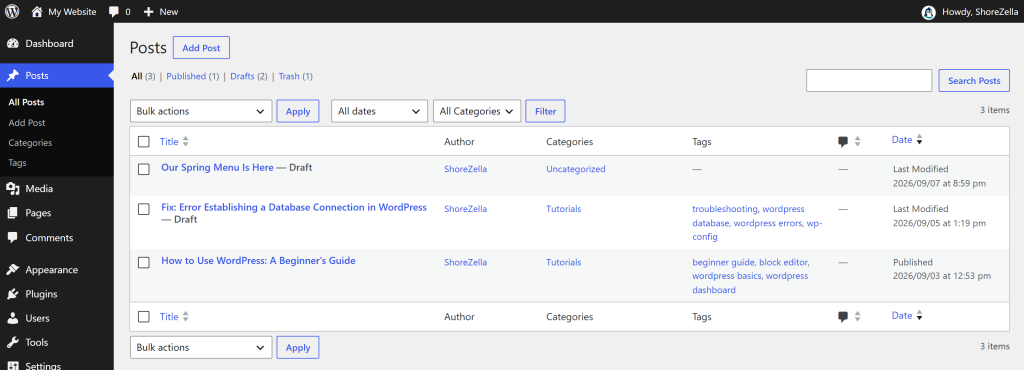
Step 1: Open a new post
In the left menu, hover Posts and click Add Post. (Older WordPress versions label this Add New Post, or just Add New.)
Clicking Posts on its own takes you to the list of everything you have written, which is where you will come back to edit or delete something.
Step 2: Learn the four regions of the editor
The editor looks busy the first time. It is really only four regions, and once you can name them the rest is easy.

- 1Top barAdd a block, undo, and publish
- 2InserterEvery block you can add
- 3CanvasYour title and content blocks
- 4SettingsOptions for the post or block
The four regions of the block editor, highlighted one at a time.
- The top bar holds the blue + button, undo and redo, the document overview, and Publish on the right.
- The canvas in the middle is your actual content. The big text at the top is the post title.
- The settings sidebar on the right holds everything about the post: featured image, excerpt, categories, tags, publish date. If you cannot see it, click the square icon near Publish to toggle it.
- The inserter is the panel that slides out when you click the blue +.
Step 3: Add content with blocks
Everything in the editor is a block: a paragraph, a heading, an image, a list, a quote, a table. You add one by clicking the blue + in the top left and picking from the list.
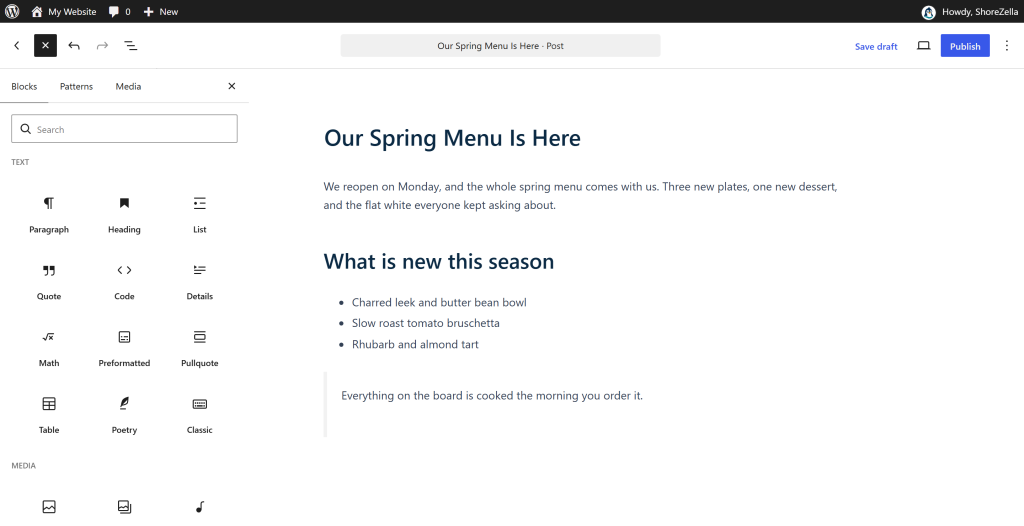
Three shortcuts that will save you a lot of clicking:
- Just start typing. A new post already has an empty paragraph block waiting.
- Press Enter at the end of a paragraph to create the next block.
- Type
/then a block name in an empty block. Typing/imageand pressing Enter is much faster than opening the inserter.
To move a block, click it and drag the six-dot handle that appears above it, or use the up and down arrows next to that handle.
Step 4: Add images, and write real alt text
Click +, choose Image, then either Upload a file or pick one from Media Library. Every file you have ever uploaded lives in the library, so you never upload the same logo twice.
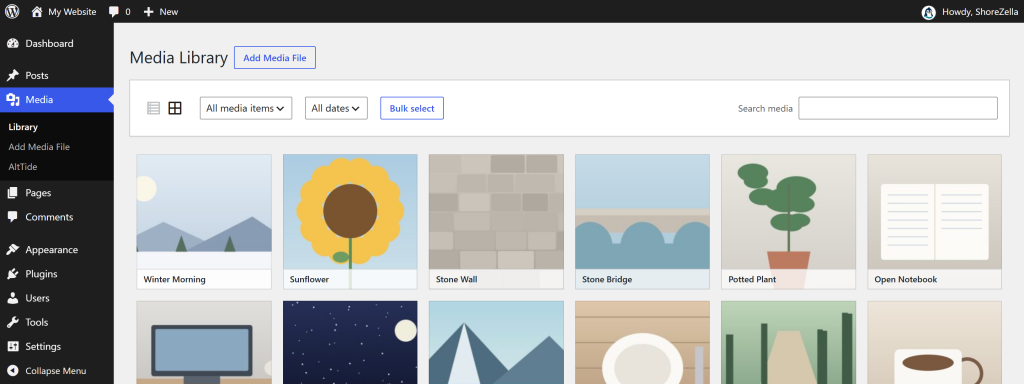
When you select an image, the settings sidebar shows an Alternative text field. Fill it in. Alt text is the sentence a screen reader speaks instead of showing the picture, and it is also how Google understands what an image shows. Describe the picture in a normal sentence: “A barista pouring milk into a flat white,” not “coffee coffee shop cafe image.”
Heads up
Alt text is the step everyone skips, and it compounds. A site with 400 images and no alt text is an accessibility problem and a pile of missed image search traffic. If you are already past that point, an AI alt text generator for WordPress can write and fill the missing ones in bulk rather than making you retype 400 descriptions by hand.
Step 5: Choose a category, and add tags if they help
Scroll the settings sidebar down to Categories and Tags.

- Categories are the sections of your site. Pick one per post. Keep the total list small, five to eight is plenty for most sites.
- Tags are specific topics that cut across categories. They are optional, and a tag used on only one post is doing nothing.
If you leave a post uncategorized, WordPress files it under “Uncategorized,” which then shows up in your public links. Rename that category or pick a real one.
Step 6: Set the featured image, write the excerpt, and publish
Back at the top of the settings sidebar are the last two fields that matter.
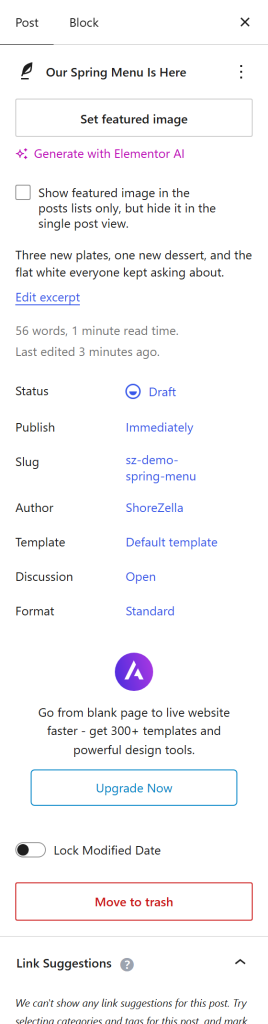
- Set featured image is the picture that represents the post on your blog listing and when someone shares the link. Without one, most themes show a blank card.
- Excerpt is the short summary shown on listings. Write 20 to 25 words. If you leave it empty, WordPress cuts your first paragraph off mid-sentence.
- Slug is the last part of the URL. Shorten it to a few real words.
how-to-use-wordpressbeatshow-to-use-wordpress-a-beginners-guide-2026.
Then click Publish in the top right, and confirm in the panel that slides out. If you want it to go live later, click the date next to Publish and pick a future date and time. WordPress will schedule it and publish it for you.
To check your work, click View Post in the admin bar at the very top of the screen.
How to add pages and build your menu
Pages work exactly like posts, minus categories and tags. Go to Pages > Add Page, give it a title, add your blocks, and publish.
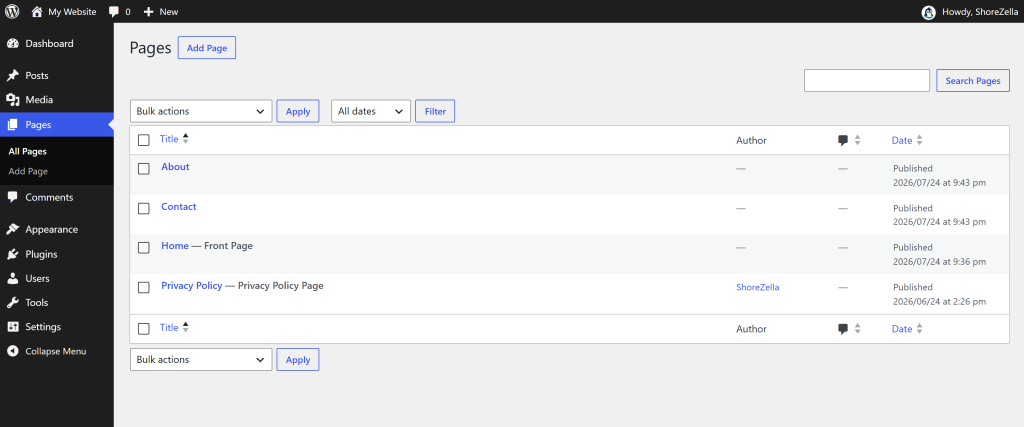
Publishing a page does not put it in your navigation. That is a separate step, and it is where most people get stuck.
Go to Appearance > Menus. If your theme uses the newer site editor instead, you will find Appearance > Editor and edit the Navigation block there. Both do the same job.
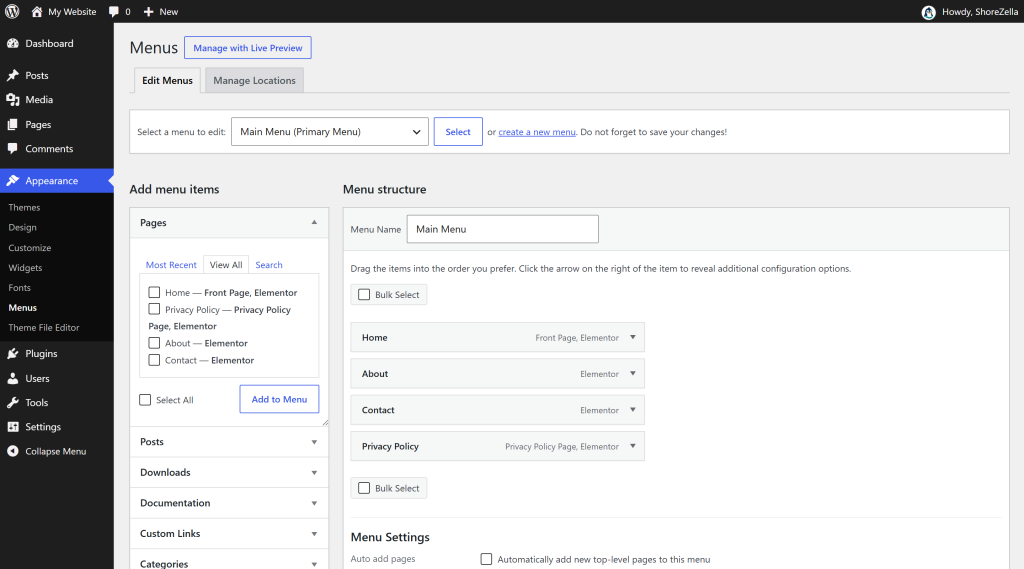
- Name the menu something like
Main Menuand click Create Menu. - On the left, tick the pages you want, then click Add to Menu.
- Drag items up and down to reorder them. Drag one slightly to the right and it becomes a dropdown under the item above it.
- Under Menu Settings, tick the display location, usually Primary.
- Click Save Menu.
Reload your public site and the menu is there. This is also how you add a link to a post, a category, or an external address: use the Custom Links panel on the left.
How to change the way your site looks
Your theme controls the design: fonts, colors, layout, headers, footers. Swapping it changes the look without touching your content.
Go to Appearance > Themes to see what is installed, then Add Theme to browse the free directory.

Two safe starting points:
- Twenty Twenty-Five is one of the default themes that ships with WordPress, built by the WordPress team. It is fast, accessible, and fully editable in the site editor.
- Astra is a popular free multipurpose theme with a lot of layout options and a starter template library.
Once a theme is active, click Customize (older themes) or open Appearance > Editor (block themes) to change your logo, colors, and fonts. Everything you change there previews live before you save.
Heads up
Do not switch themes on a live site without checking it first. Themes register their own menus and widget areas, so a switch can empty your navigation until you reassign it. Preview first, and switch during a quiet hour.
How to install and use plugins
A plugin adds a feature WordPress does not ship with: a contact form, caching, SEO fields, a booking calendar, a store. Go to Plugins > Installed Plugins to see what you have.
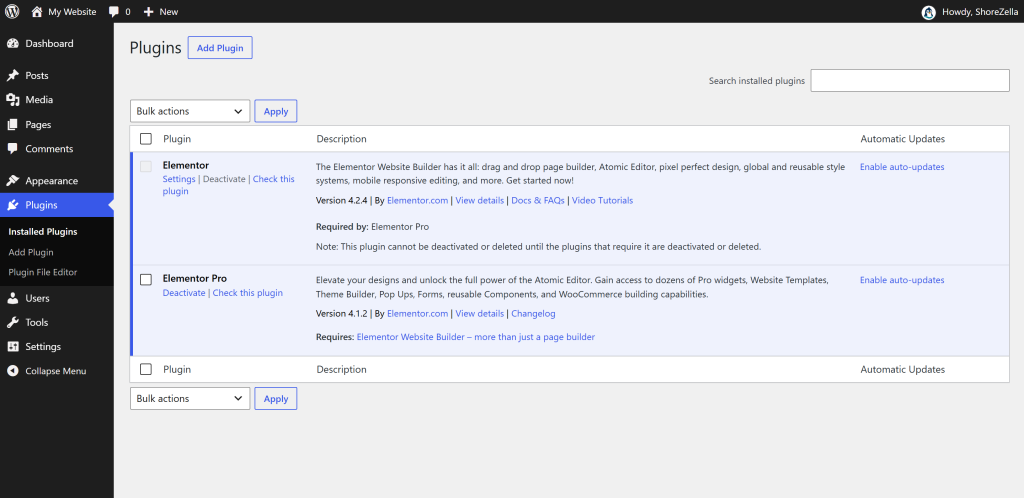
To add one, click Add Plugin at the top, search, then click Install Now followed by Activate.

Before you install anything, check three numbers on the plugin card: active installations, rating, and last updated. A plugin not updated in over a year is a risk regardless of how good it looks.
Most new sites need only a handful of plugins:
| Job | What to look for |
|---|---|
| Forms | A contact form builder with spam protection |
| SEO | Title, meta description, and sitemap control |
| Speed | Page caching and image optimization |
| Security | Login protection and malware scanning |
| Backups | Scheduled off-site copies of files and database |
| Image SEO | Alt text on every image |
After activating, look for the plugin’s own settings. Some add a top-level menu item, some sit inside a menu that already exists, some hide under Settings, and some add a Settings link right on the Plugins row. Here is a real example, the AltTide alt text plugin, which lives at Media > AltTide and opens on a coverage dashboard:

Do this instead
Resist installing fifteen plugins in your first week. Every plugin is code that loads on your site, and a slow, fragile site is usually a site with too many overlapping plugins. Add one, use it for a week, then add the next. The ShoreZella plugins are built the same way, one job each, and the All Access Pass exists for people who genuinely need several.
The settings to change on day one
Five settings, ten minutes, and they save you real problems later.

| # | Setting | Where | What to do |
|---|---|---|---|
| 1 | Site title and tagline | Settings > General | Put your real business name in the title. Replace the default tagline or clear it. |
| 2 | Time zone | Settings > General | Set your own time zone, or scheduled posts publish at the wrong hour. |
| 3 | Permalinks | Settings > Permalinks | Choose Post name. |
| 4 | Search engine visibility | Settings > Reading | Leave Discourage search engines unticked when you are ready to be found. |
| 5 | Comment approval | Settings > Discussion | Tick Comment must be manually approved to stop spam appearing live. |
Number three deserves its own screenshot, because it is the one that is genuinely hard to undo later.

Post name gives you yoursite.com/your-post-title. The alternatives either bury the title behind a date, as in yoursite.com/2026/08/29/your-post-title, or drop it entirely, as in yoursite.com/?p=123. Post name is easier to read, easier to share, and better for search.
Change it now, on day one. If you change it a year later, every existing link to your site breaks unless you set up a redirect for each one.
Heads up
Changing permalinks on an established site is a real migration, not a settings tweak. Do it on day one, or plan redirects before you touch it.
Users and roles: who can do what
Go to Users > All Users to see everyone who can log in. Click Add User to invite someone.

The role you give someone decides what they can break. WordPress ships with five:
| Can they… | Subscriber | Contributor | Author | Editor | Administrator |
|---|---|---|---|---|---|
| Read the site and manage their profile | |||||
| Write a draft post | |||||
| Upload images to the media library | |||||
| Publish their own posts | |||||
| Edit and publish anyone’s posts and pages | |||||
| Moderate comments | |||||
| Install themes and plugins, add users, change settings |
What each built-in WordPress role is allowed to do.
- Subscriber can only manage their own profile.
- Contributor can write drafts but cannot publish or upload images.
- Author can write, upload, and publish their own posts.
- Editor can edit and publish anyone’s posts and pages, and moderate comments.
- Administrator can do everything, including install plugins and delete the site.
Give people the smallest role that lets them do their job. A freelance writer needs Author, not Administrator. Only site owners and developers need Administrator, and every extra Administrator account is another way in for someone who should not be there.
Your before-you-launch checklist
Run this before you tell anyone the address.
- Site title and tagline set
- Time zone matches where you are
- Permalinks set to Post name
- Home page and menu in place
- Search engine visibility turned on
- Every image has alt text
- Contact form tested end to end
- A backup taken and stored off site
The eight checks worth doing before you go live.
- Site title and tagline say what you want them to say.
- Time zone matches where you are.
- Permalinks are set to Post name.
- A real home page is set under Settings > Reading, or your theme’s default home is what you want.
- Discourage search engines is unticked under Settings > Reading.
- Every image has alt text.
- Your contact form has been submitted once, by you, and the email arrived.
- A backup exists somewhere that is not your own hosting.
That last one is the one people regret. A backup stored only on the same server as your site is not a backup.
Common beginner mistakes
- Building the design before the content. Write the pages first. The theme decisions get obvious once real words exist.
- Using pages for blog posts. They will never appear in your blog feed, and you will not understand why.
- Skipping alt text. It costs seconds per image now and hours to fix at scale.
- Leaving permalinks on the default. Cheap to fix on day one, expensive on day 300.
- Installing a plugin for something the theme already does. Check Appearance > Editor and your theme options first.
- One Administrator account shared by four people. You lose the ability to see who changed what.
- Never running updates. Out-of-date plugins are the most common way WordPress sites get compromised. Check Dashboard > Updates weekly.
So how easy is WordPress to use?
Honestly: easy to start, and about a week of real effort to feel fluent.
Publishing a post is genuinely simple. Type a title, type some text, click Publish. Most people do that successfully within ten minutes of their first login.
What takes longer is the vocabulary and the geography. Nothing about the word “permalink” tells you it means the URL structure. Nothing tells you that publishing a page does not add it to the menu. Those are not hard concepts, they are just unfamiliar, and there are perhaps thirty of them. Learn a few each session and the whole thing clicks.
Compared with the alternatives, the trade is clear. A hosted website builder is easier for the first week and more restrictive after the first year. WordPress asks more of you up front and then almost never says no.
WordPress: how to use it without hiring a developer
Everything in this guide is forms and buttons. The jobs that genuinely need a developer are custom theme work, custom post types, and anything that has to talk to another system’s API. Publishing, design changes, menus, plugins, and settings are not on that list, and they cover the work most site owners actually do.
A realistic timeline for someone learning how to use WordPress for beginners, starting from zero:
| Time in | What you can do |
|---|---|
| 15 minutes | Log in, find your way around, publish a post |
| 1 hour | Pages, a working menu, a theme you chose |
| 1 day | Plugins installed and configured, settings correct, a contact form that works |
| 1 week | Comfortable enough to stop looking things up for routine tasks |
What to learn next
Pick whichever one is blocking you right now:
- Speed. Clearing your cache is the first thing to try whenever a change does not show up on the public site.
- SEO. Set your titles, meta descriptions, and a sitemap so search engines can read your site properly.
- Images. Resize and compress before upload, and get alt text on everything.
- Backups. Get a scheduled, off-site backup running before you need it.
Two free resources are worth bookmarking: the official WordPress documentation, which is the source of truth for how core features behave, and Learn WordPress, which has short structured courses if you would rather be taught than search. The plugin documentation covers setup for each ShoreZella plugin, and the ShoreZella blog adds a new WordPress tutorial most weeks.
Frequently asked questions
Is WordPress free to use?
The WordPress software is free and open source. What you pay for is hosting and a domain, usually somewhere between a few dollars and a few tens of dollars a month depending on your traffic. Premium themes and plugins are optional, and thousands of free ones exist in the official directory.
Do I need to know how to code to use WordPress?
No. Everything in this guide is done through forms and buttons in the admin area. Knowing a little HTML or CSS lets you fine-tune a design, but plenty of people run busy WordPress sites for years without writing a line of either.
How long does it take to learn how to use WordPress?
Most people publish their first post within fifteen minutes and feel comfortable with the everyday screens after about a week of regular use. Advanced work like custom themes takes longer, but you can run a complete site without ever going there.
What is the difference between WordPress.com and WordPress.org?
WordPress.org is the free software you install on your own hosting, with no restrictions on plugins or themes. WordPress.com is a paid service that hosts that software for you, with plugin and theme limits on cheaper plans. Self-hosted WordPress.org gives you full control.
Why is my change not showing on my website?
Nine times out of ten it is caching. Your browser, a caching plugin, or your host is serving a saved copy of the old page. Hard-refresh your browser first, then clear any caching plugin, then ask your host to clear their server cache.
Where do I edit my site’s menu?
Go to Appearance > Menus, tick the pages you want, click Add to Menu, drag them into order, choose a display location under Menu Settings, and click Save Menu. If your theme uses the site editor instead, open Appearance > Editor and edit the Navigation block.
The takeaway
Knowing how to use WordPress comes down to about ten screens. Posts and pages for content, Media for files, Appearance for the look, Plugins for features, Users for people, and Settings for the handful of options that matter. Everything else is a variation on those.
Publish one post today. Add one page and put it in the menu. Fix the five day-one settings. That is a working website, and the rest of it will make far more sense once something real is live.
When you are ready to add capability, the ShoreZella plugins each do one job properly, and the documentation walks you through setup step by step.