
Login Styler: Customize the WordPress Login Page
ShoreZella Login Styler turns the plain WordPress login screen into a page that looks like it belongs to your site. Add your logo, set a background, restyle the form, and match the colors to your brand, all from one settings screen with a live preview, and no code.
This guide follows Login Styler’s own screen. Each section heading below is one section of the settings page, in the same order you see it, and every option in that section has its own heading with the exact name shown in Login Styler.
Overview
Every WordPress site ships with the same wp-login.php screen: a gray page with the WordPress logo. It is the first thing your clients, members, and customers see when they sign in, and by default it is not your brand at all.
Login Styler lets you make that screen yours in a few minutes. You change fields on the left and watch a live preview of your real login page update on the right. Nothing changes on your live site until you press Save Changes, so you can experiment freely.
Two things to know up front:
- It only changes how the login page looks. It never changes how logging in works. Your login URL, passwords, and security stay exactly as WordPress and your other plugins set them up.
- It works with any theme. The login page is separate from your theme, so your theme is never modified.
New to ShoreZella? Browse the full plugin documentation, or add accessible image alt text with the AltTide guide.
Requirements
- WordPress 5.6 or higher
- PHP 7.4 or higher
- No API key, no account, and no theme changes needed
Login Styler is free. It loads its styling only on the login page and its own settings screen, and nowhere else on your site.
Installation and setup
- In your dashboard, go to Plugins > Add New and search for “ShoreZella Login Styler”, or upload it in Plugins > Add New > Upload Plugin.
- Click Install Now, then Activate.
- Go to Settings > ShoreZella Login Styler to open Login Styler.
Edit the fields on the left, watch the live preview on the right, and press Save Changes when it looks right. Then visit your login page to see it live.
The settings screen and live preview
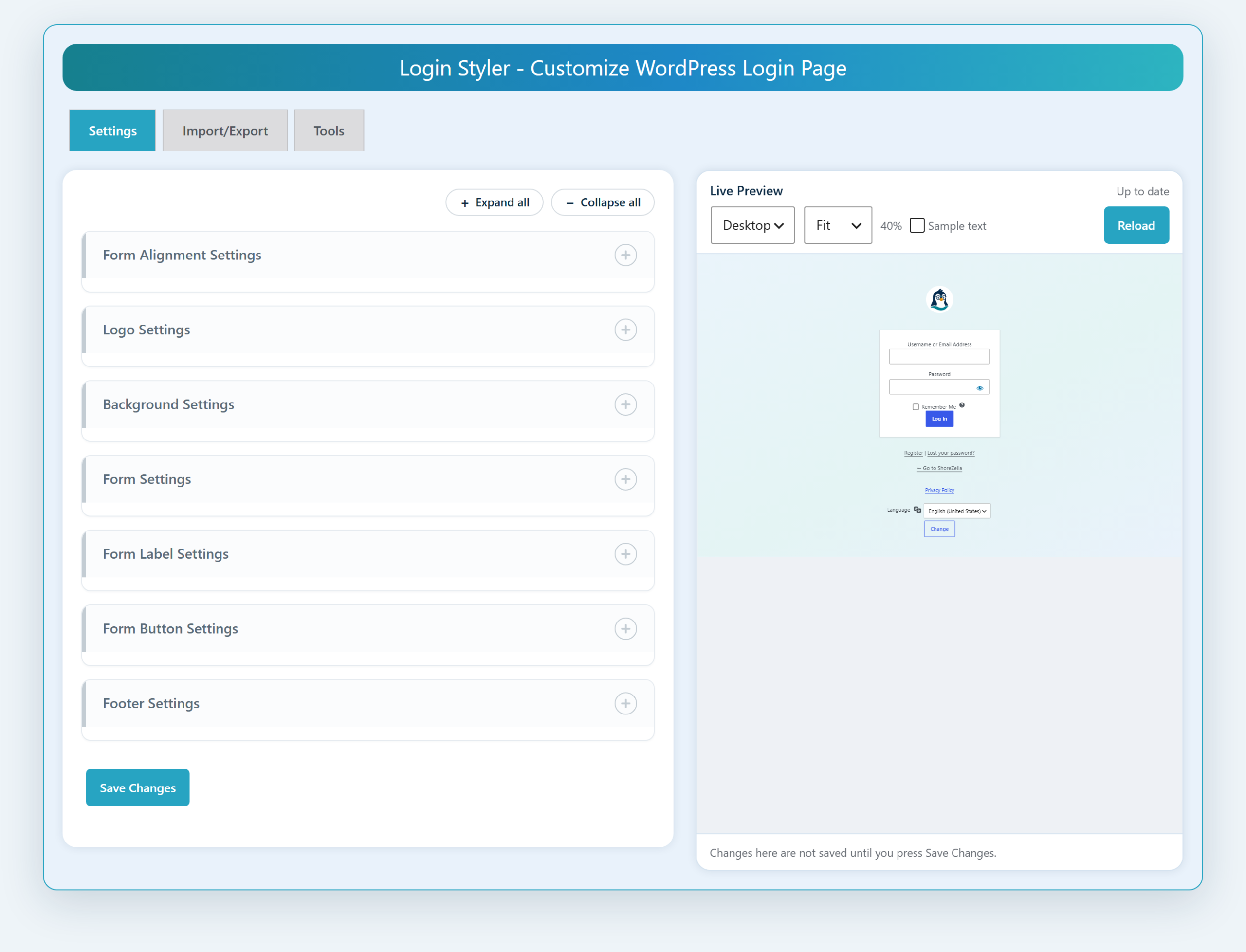
Login Styler has three tabs across the top: Settings (all the styling), Import/Export, and Tools.
The Settings tab is a stack of collapsible sections. Use Expand all or Collapse all at the top right, or click a single section to open just that one. Beside the sections is the Live Preview, which shows your real login page:
- It updates the moment you change a field, before anything is saved.
- Device switch: view the page as Desktop, Tablet, or Mobile.
- Fit / zoom: fit the preview to the panel or set a zoom percentage.
- Sample text: turn this on to see how notices, errors, and hints will look.
- Reload: refresh the preview. An “Up to date” label confirms the preview
matches your current settings.
Nothing is written to your site until you press Save Changes.
Form Alignment Settings
Controls where the login form sits and how big it is. Every option here can be set separately for Desktop, Tablet, and Mobile. On tablet and mobile, any value you leave blank simply follows the wider screen.
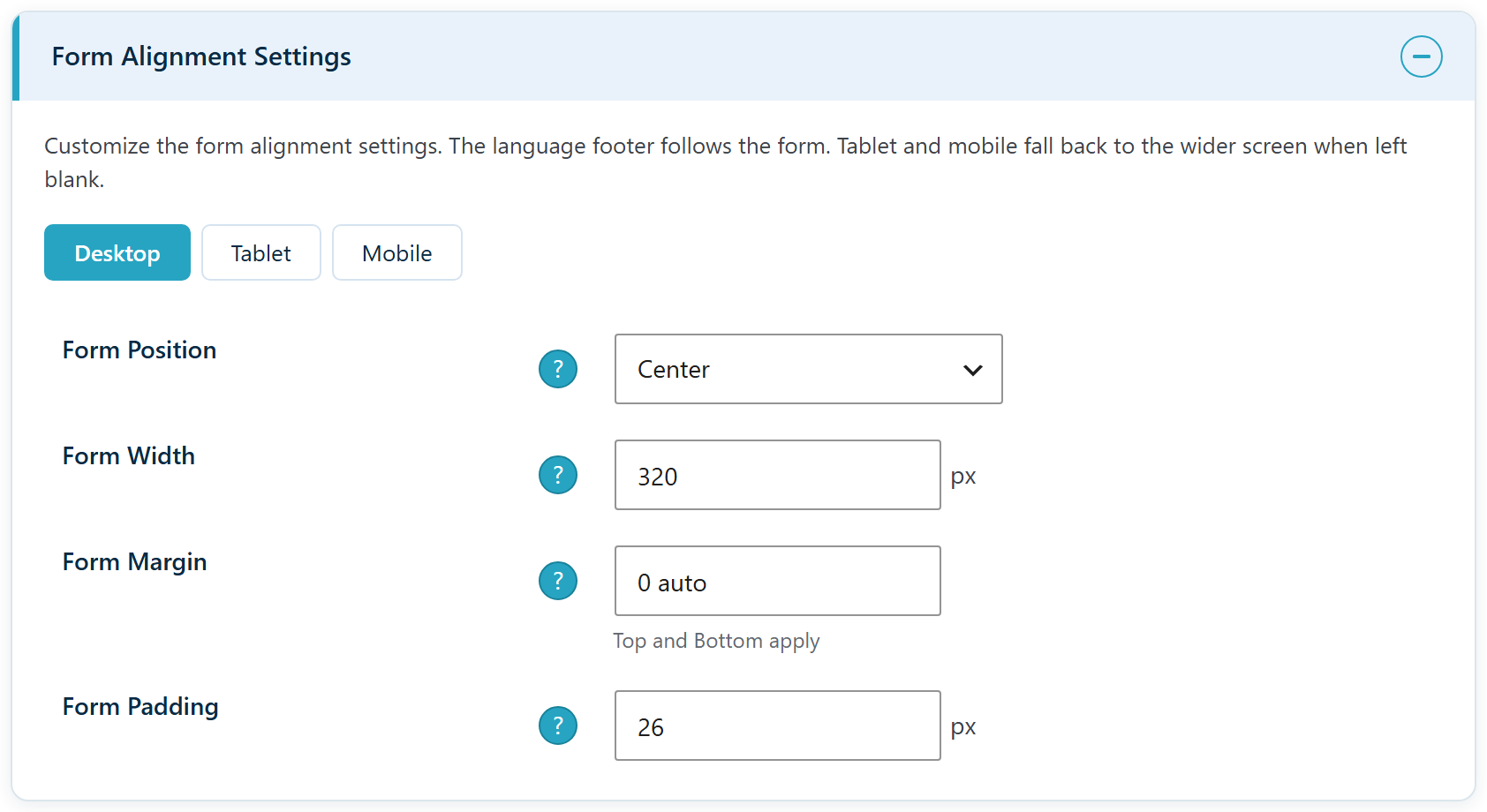
Form Position
Align the form to the left, center, or right of the page.
Form Width
The width of the form box, in pixels. Default 320.
Form Margin
The spacing around the form, as a CSS shorthand such as 0 auto (which centers it).
Form Padding
The spacing inside the form, in pixels. Default 26.
Logo Settings
Replace the default WordPress logo with your own and add a line of text beneath it.

Logo URL
Choose or upload the logo image shown on the login page.
Logo Height
The logo height, in pixels. Default 84.
Logo Width
The logo width, in pixels. Default 84.
Logo Link
Where clicking the logo goes. Defaults to your site’s home page.
Logo Title
The tooltip text shown when hovering the logo. Defaults to your site name.
Logo Subheading
A line of text shown beneath the logo, for a tagline or a welcome message.
Background Settings
Set the look of the whole page behind the form.
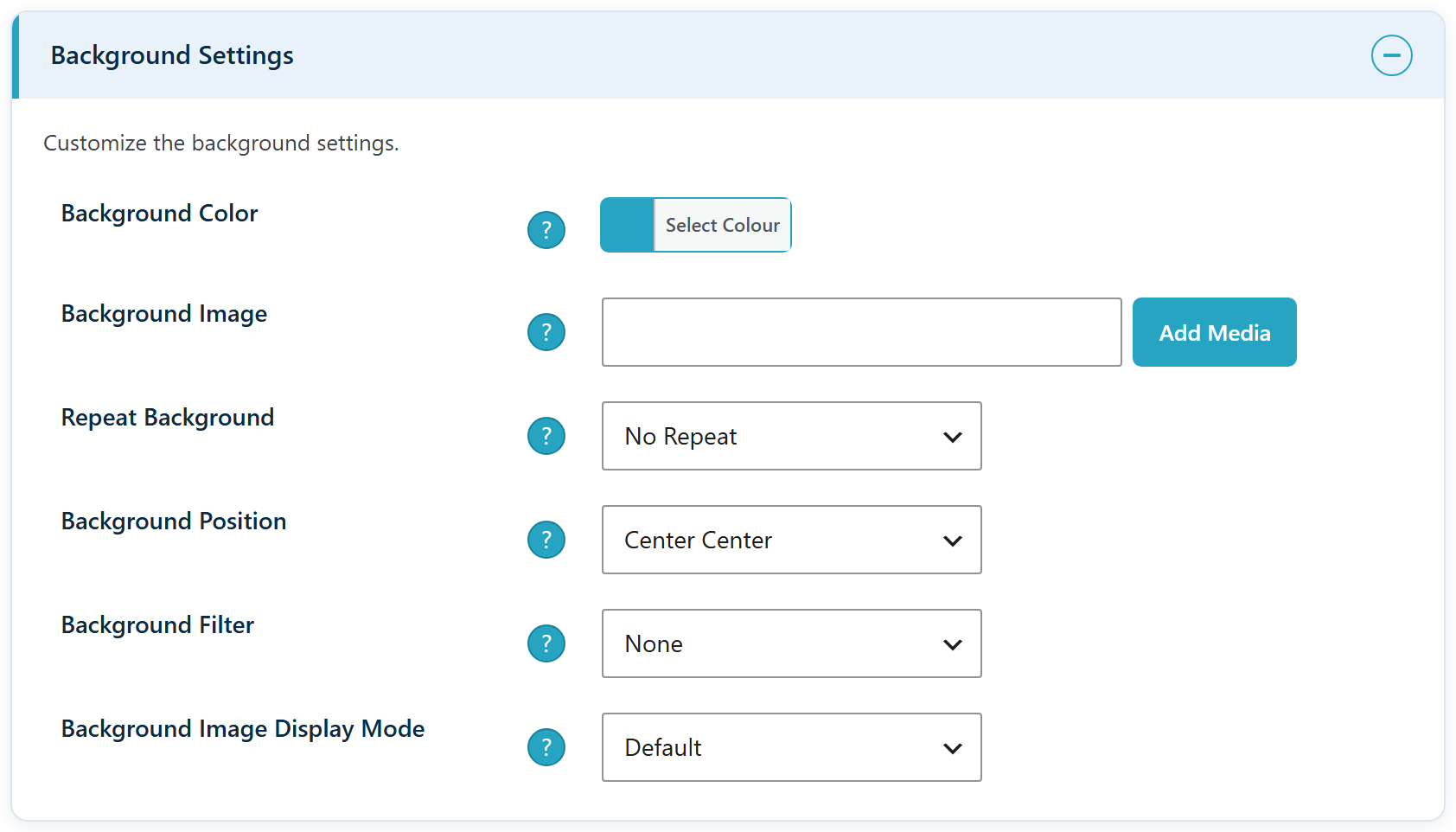
Background Color
A solid color for the page background.
Background Image
A full-page background image.
Repeat Background
How the image repeats: no-repeat, repeat, repeat-x (across), or repeat-y (down).
Background Position
Where the image sits, for example center center or left top (nine positions in all).
Background Filter
An optional effect over the background: none, blur, brightness, contrast, grayscale, sepia, or saturate.
Background Image Display Mode
How the image scales: default, contain, cover, or stretch.
Form Settings
Style the form box itself: its background, shape, and depth.
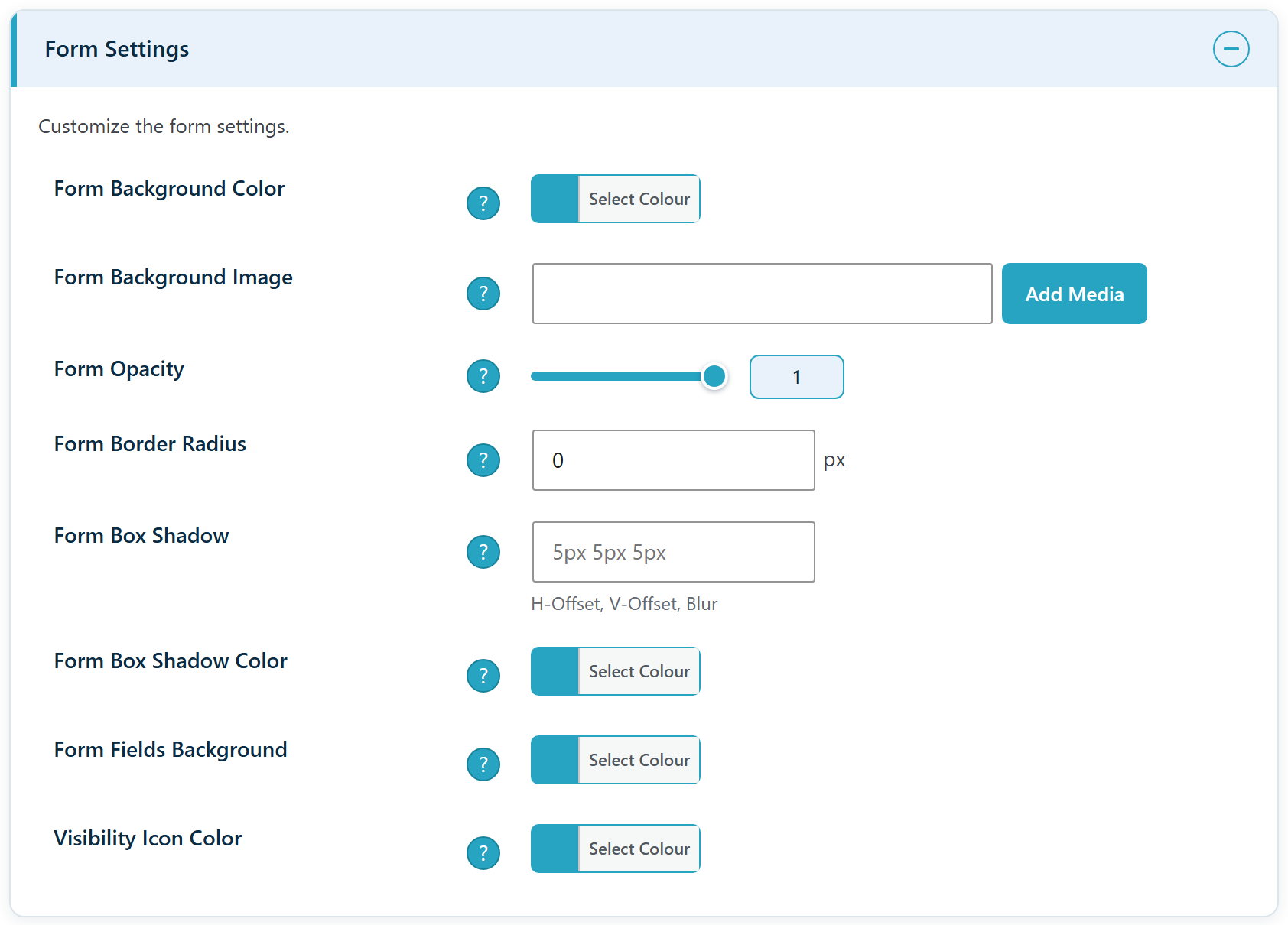
Form Background Color
The color of the form box. Default #ffffff.
Form Background Image
An optional image behind the form fields.
Form Opacity
How see-through the form is, from 0.1 to 1. Useful over a busy background.
Form Border Radius
Rounded corners for the form, in pixels.
Form Box Shadow
A drop shadow for the form, as a CSS shorthand.
Form Box Shadow Color
The color of the form’s drop shadow.
Form Fields Background
The background color of the input boxes.
Visibility Icon Color
The color of the show/hide password eye icon. Default #0073aa.
Form Label Settings
Colors and sizes for the form’s text: the field labels, what users type, and the notices WordPress shows.

Input Field Text Color
The color of the text users type into the fields. Default #000000.
Notification Text Color
The color of notice and error messages.
Notification Text Font Size
The size of notice and error messages, in pixels. Default 14.
Label Color
The color of the “Username” and “Password” labels. Default #333.
Label Font Size
The label size, in pixels. Default 14.
Label Alignment
Align labels left, center, or right.
Registration Confirmation Text Color
The color of the registration and hint text.
Registration Confirmation Text Size
The size of the registration and hint text, in pixels. Default 14.
Form Button Settings
Style the Log In button.
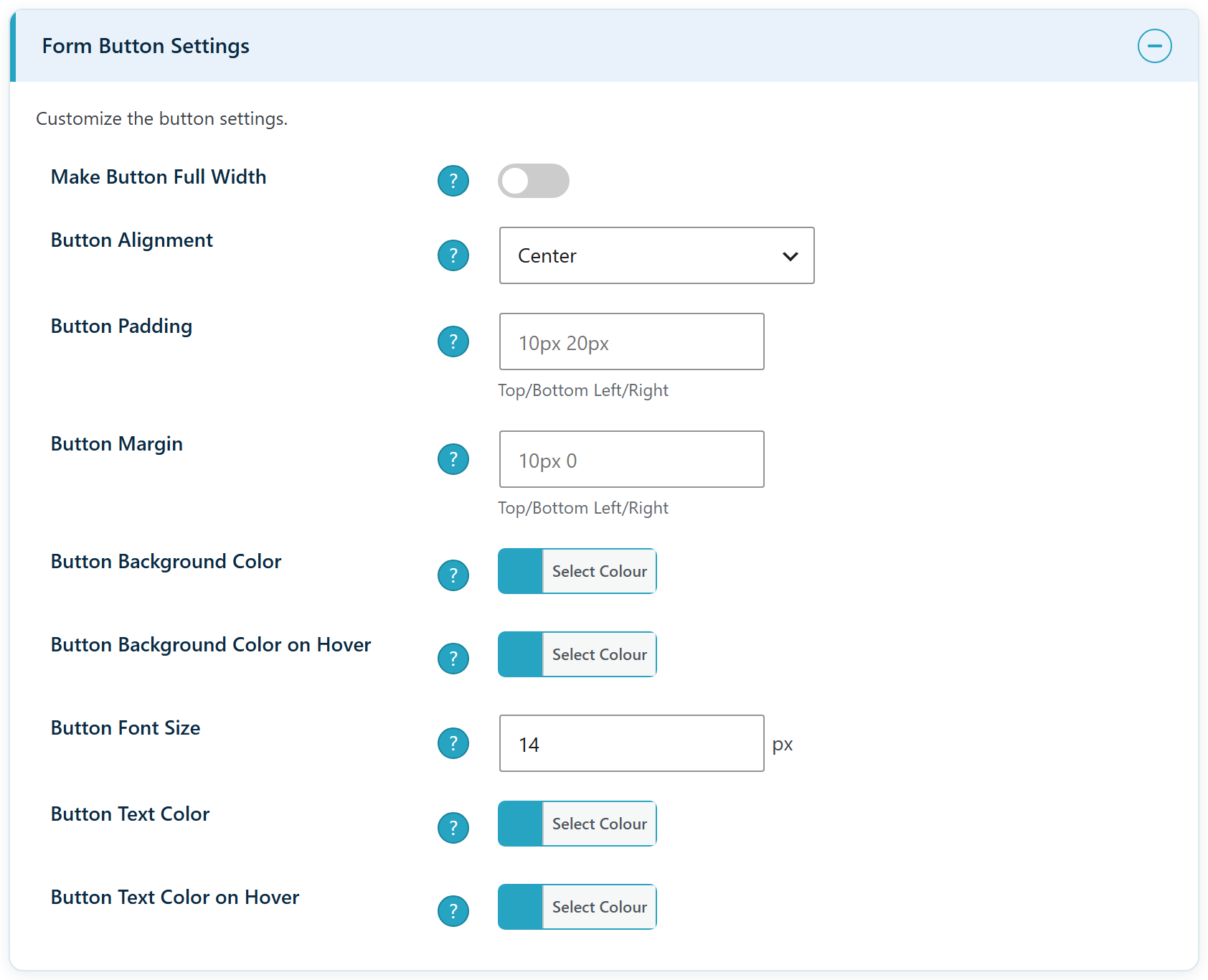
Make Button Full Width
Stretch the button across the full width of the form.
Button Alignment
Align the button left, center, or right.
Button Padding
The spacing inside the button, as a CSS shorthand.
Button Margin
The spacing around the button, as a CSS shorthand.
Button Background Color
The button’s fill color.
Button Background Color on Hover
The button’s fill color when hovered.
Button Font Size
The button text size, in pixels. Default 14.
Button Text Color
The button text color. Default #ffffff.
Button Text Color on Hover
The button text color when hovered.
Footer Settings
The links beneath the form, and the language switcher, are styled here.
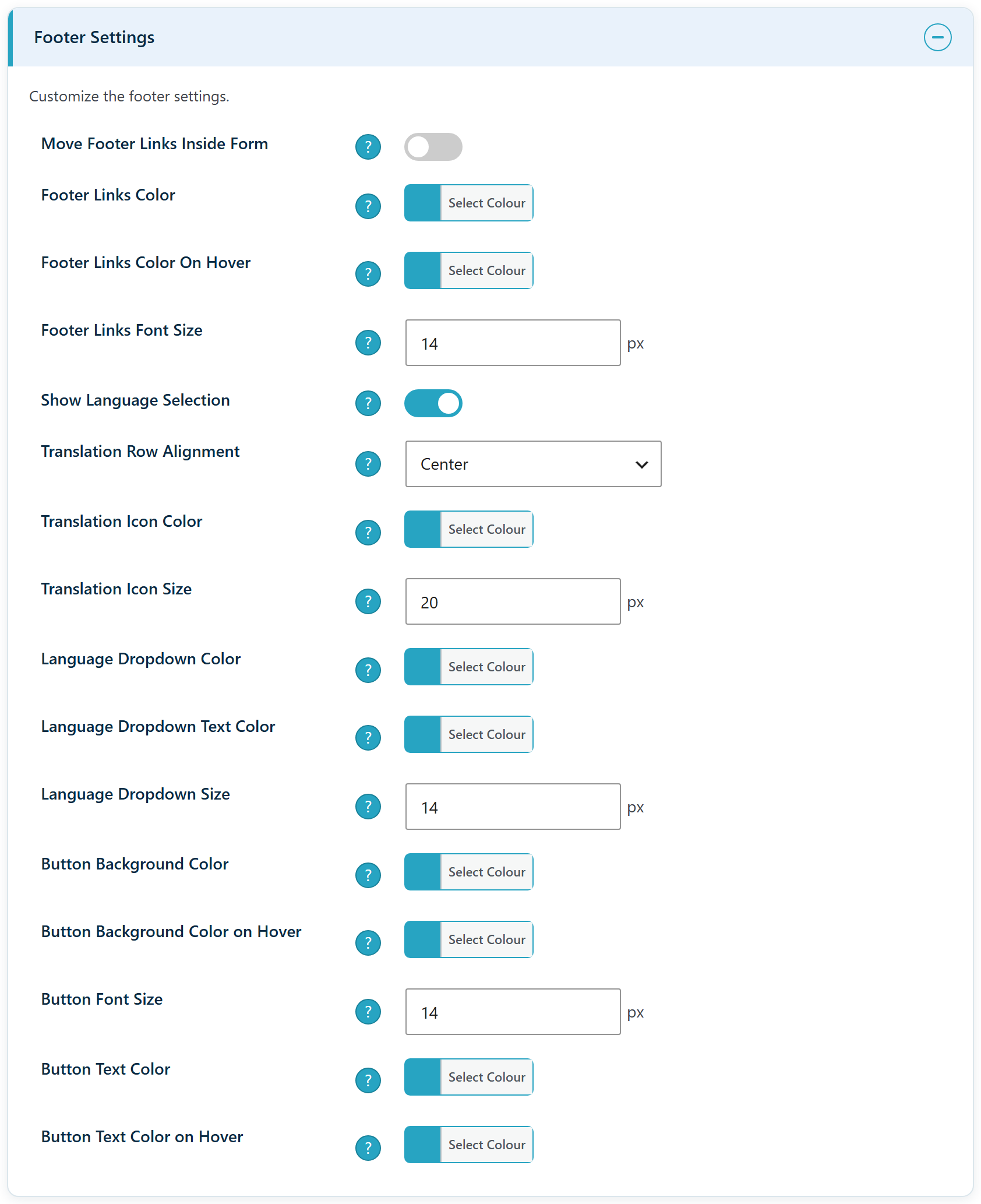
Move Footer Links Inside Form
Move the “Register” and “Lost your password?” links inside the form box for a tidier, self-contained card.
Footer Links Color
The color of the footer links.
Footer Links Color On Hover
The footer link color when hovered.
Footer Links Font Size
The footer link size, in pixels. Default 14.
Show Language Selection
Show or hide the login page’s language selector. The options below appear only when this is on.
Translation Row Alignment
The vertical alignment of the switcher row: top, center, bottom, or baseline.
Translation Icon Color
The color of the language icon.
Translation Icon Size
The language icon size, in pixels. Default 20.
Language Dropdown Color
The background color of the language dropdown.
Language Dropdown Text Color
The text color inside the language dropdown.
Language Dropdown Size
The language dropdown font size, in pixels. Default 14.
Button Background Color (language Change button)
The fill color of the language “Change” button.
Button Background Color on Hover (language Change button)
The language “Change” button fill when hovered.
Button Font Size (language Change button)
The language “Change” button text size, in pixels. Default 14.
Button Text Color (language Change button)
The text color of the language “Change” button.
Button Text Color on Hover (language Change button)
The language “Change” button text color when hovered.
Import/Export
The Import/Export tab moves your design between sites.
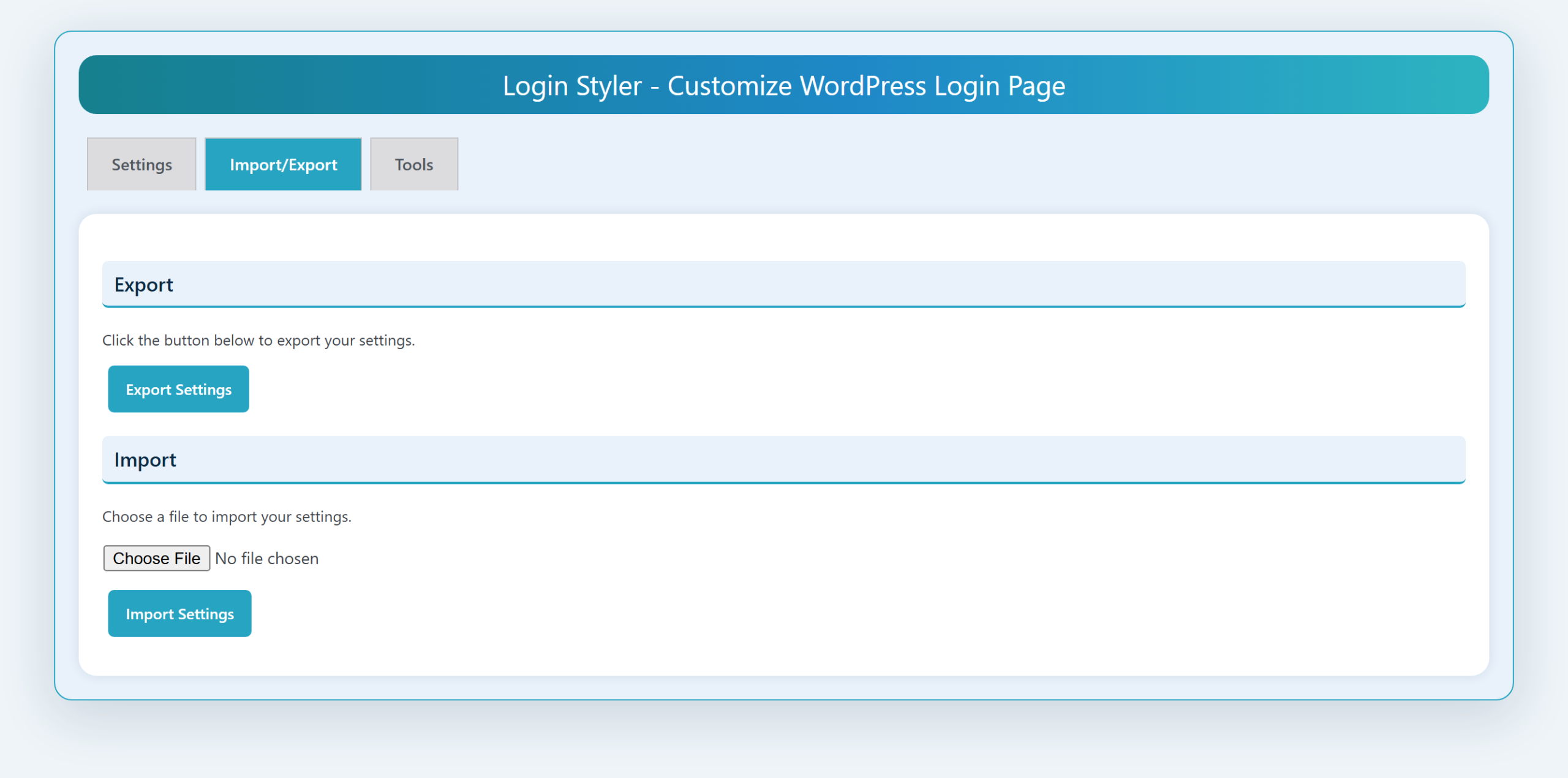
Export
Download your current settings as a file.
Import
Upload a settings file from another site to apply the same design. This is the fast way to reuse a look across several sites, or to keep a backup.
Tools
The Tools tab holds housekeeping options. Deactivating Login Styler never removes your settings.
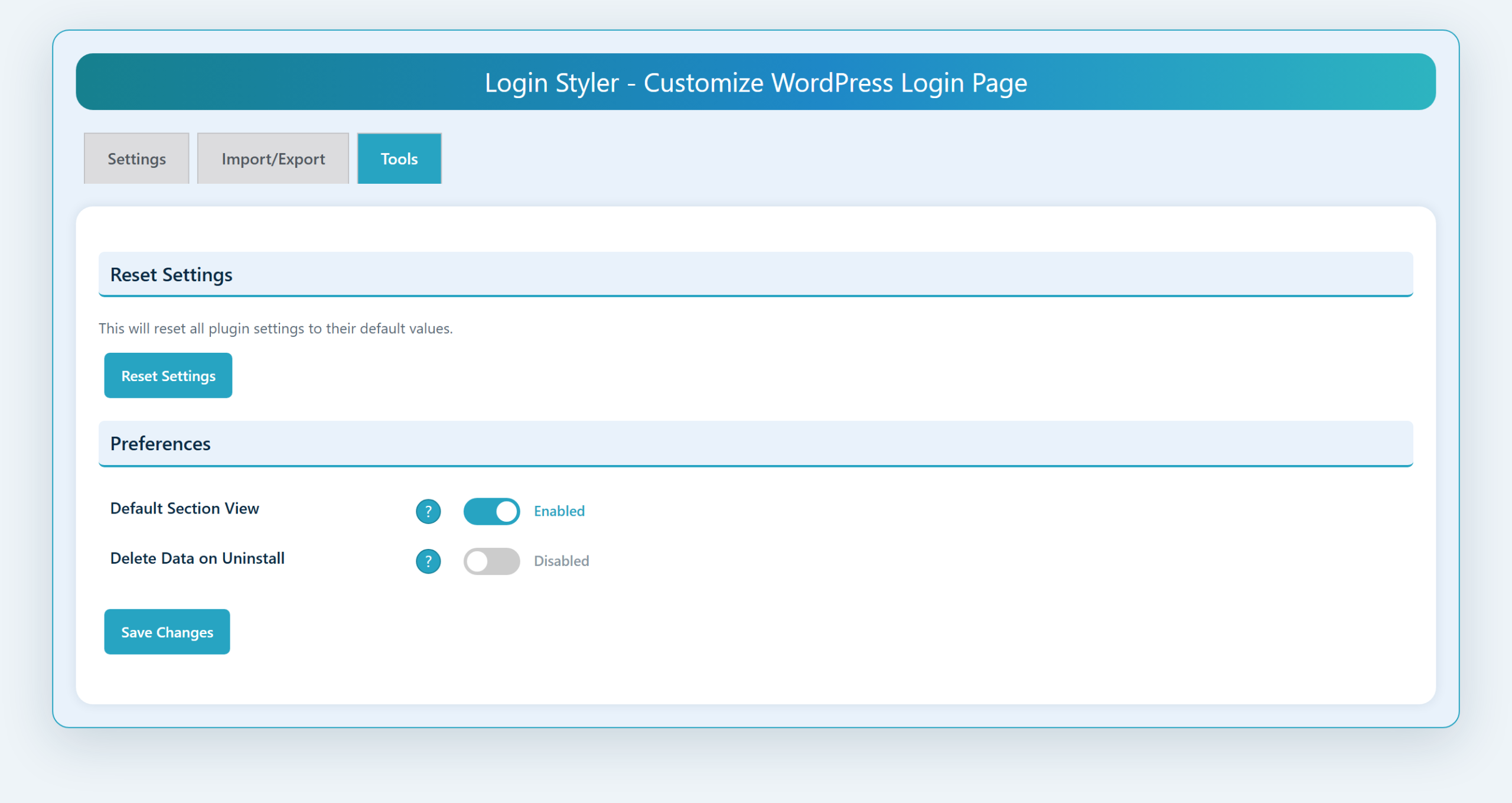
Reset Settings
Restore all styling options to their defaults, to start over.
Default Section View
Choose whether the Settings sections start open or collapsed each time you load the page.
Delete Data on Uninstall
Off by default. When off, your settings are kept even if you delete Login Styler. Turn it on first if you want every plugin option removed when you delete Login Styler.
Frequently asked questions
Does this change how users log in?
No. Login Styler only changes the appearance of the login page. It does not touch your login URL, authentication, passwords, or any security setting, so logging in works exactly as it did before.
Will it work with my theme?
Yes. The WordPress login page is separate from your theme, so Login Styler works regardless of which theme you use. Your theme is not modified in any way.
Do I have to save to see my changes?
No. The live preview updates as you type, before anything is saved. Your real login page only changes once you press Save Changes.
Can I set a different layout for mobile?
Yes. In Form Alignment Settings, form position, width, margin, and padding can be set separately for desktop, tablet, and mobile. Any value you leave blank on tablet or mobile falls back to the wider screen.
Can I customize the login logo?
Yes. In Logo Settings you can use your own logo image, set its size, choose the link it points to and its hover title, and add a subheading below it.
Will my settings survive plugin updates?
Yes. Your settings are stored as normal WordPress options and are kept across updates. You can also export them from the Import/Export tab and import them on another site.
How do I reset everything to default?
Open the Tools tab and use Reset Settings.
Does Login Styler remove its data when uninstalled?
Only if you ask it to. Enable Delete Data on Uninstall on the Tools tab and all plugin options are removed when you delete Login Styler. Otherwise your data is left untouched.
What is the minimum PHP version?
PHP 7.4 or higher.
Changelog
1.0.0
- Initial release.